1. Help Center
This is the help center of MyStage.Ai
1.1 Getting Started
Welcome to MyStage.AI, your all-in-one Creator Studio for generating AI-powered content. This guide will provide you with everything you need to know to get started on the platform, including how to create your account, navigate the dashboard, and publish your first AI creation.
Whether you’re new to AI tools or an experienced creator, you’ll find step-by-step instructions for setting up your profile, exploring the available generation tools, managing your credits.
Start here to familiarize yourself with the essentials and maximize the potential of MyStage.AI’s robust creator ecosystem.
1.1.1 What Is MyStage.AI and How It Works
🧠 What Is MyStage.AI?
MyStage.AI is an advanced Creator Studio that consolidates the most powerful AI tools into a single platform. It enables creators, influencers, and digital artists to generate images, videos, voices, music, and even entire AI characters using an easy credit-based system. Instead of juggling multiple applications or APIs, MyStage.AI centralizes everything into one intuitive workspace where creativity meets automation.
⚙️ How MyStage.AI Works
MyStage.AI operates on a credit-based model, giving users complete control over their creation process. Credits can be used to access any AI generation tool available on the platform, including Text-to-Image, Image-to-Video, FaceSwap, Music, and Consistent Character generation. Each generation consumes a small number of credits, depending on the tool’s complexity and model used. Users can purchase credits individually or opt for discounted monthly subscriptions. Behind the scenes, MyStage.AI employs state-of-the-art AI models (such as FLUX, Stable Diffusion, and Runway) to deliver high-quality outputs quickly.
🌟 Key Features Overview
- AI Tools in One Place: Generate content across categories such as images, videos, music, and voice without technical setup.
- Referral Program: Earn rewards by inviting other creators, receiving up to 10% of their spending in the first year.
- Secure Cloud Storage: Access your generation history anytime from your Creator Studio dashboard.
- Multiple AI Models: Choose from different engines (like FLUX and Stable Diffusion) to achieve varying styles and speeds.
👥 Who Can Use MyStage.AI?
MyStage.AI is designed for everyone, regardless of experience level:
- AI creators looking to produce high-quality content quickly
- Influencers and streamers wanting to create visuals, videos, or avatars
- Agencies managing multiple clients or campaigns
- Developers and AI enthusiasts testing models without the hassle of setup
No coding or technical expertise is needed. MyStage.AI is built to make advanced AI generation as simple as a single click.
🚀 How to Get Started Quickly
- Create your free account at MyStage.AI.
- Access your Creator Studio dashboard from the top menu.
- Browse available AI tools (for images, videos, voice, etc.).
- Purchase or use free credits to start generating.
- Download your results locally.
❓ FAQ: Do I Need Technical Experience?
Not at all. MyStage.AI is designed to make AI generation accessible to everyone, no coding, setup, or third-party API configuration required. Each tool includes a guided interface with clear fields for prompts, model selection, and output format, allowing you to focus entirely on your creativity.
1.1.1 System Requirements & Supported Browsers
⚙️ Overview
MyStage.AI runs entirely in your browser. No downloads or installations required.
However, because AI generation relies on modern web technologies and cloud rendering, using a compatible browser and a stable internet connection ensures the best possible experience.
This guide covers supported browsers, system requirements, and optimization tips to help you avoid lags, crashes, or failed generations.
🌐 Supported Browsers
For the smoothest performance and full feature access, use one of the following updated browsers:
| Browser | Recommended Version | Notes |
|---|---|---|
| Google Chrome | Latest version | Best overall performance and compatibility |
| Microsoft Edge | Latest version | Fully supported and optimized |
| Safari | Latest version on macOS | Fully supported and optimized |
| Firefox | Latest version | Fully supported and optimized |
⚠️ Tip: Make sure your browser is up to date. It significantly improves the loading times and user experience.
💻 Device Requirements
While MyStage.AI runs on most modern devices.
Minimum Device Specs:
There are no minimum device specs; as long as you can run a browser, you are good to go.
Recommended Specs:
This is for reference only. MyStage.AI can run on any modern computer as long as a browser is installed.
- CPU: Quad-core or Apple M-series
- RAM: 8 GB or more
- Display: 1080p or higher
- Browser version: Updated within the last 2 months
📱 Mobile & Tablet Use
MyStage.AI works on mobile and tablet devices, though desktop browsers remain the preferred environment.
- Mobile browsers may limit simultaneous previews.
- File uploads over 100MB can fail on older mobile devices.
- Avoid multitasking apps while generating, as mobile browsers can suspend background activity.
🌩 Internet Connection
A stable, fast connection ensures your prompts are sent and processed without interruption.
Minimum Speed: 4 Mbps
Recommended Speed: 25 Mbps or higher
Avoid unstable networks when generating videos or uploading large files.
📘 Note: Your results are rendered on third party servers, so your connection mainly affects upload and download speeds — not processing power.
🧩 Browser Settings Checklist
To ensure smooth operation:
- Enable JavaScript and cookies
- Disable aggressive ad blockers or pop-up blockers on mystage.ai
- Allow secure connections (HTTPS)
- Keep browser cache under control & clear occasionally if previews lag
🧠 Troubleshooting Tips
If MyStage.AI feels slow or unresponsive:
- Restart your browser and clear the cache.
- Make sure no other heavy applications (like video editors) are running.
- Disable extensions that affect site scripts.
- Try another browser (Chrome is most optimized).
- If issues persist, report them to [email protected]
1.1.1 How to Sign Up and Log In
🧩 Overview
Creating an account on MyStage.AI takes less than a minute and gives you full access to the Creator Studio, credit system, and publishing features.
This guide explains how to register, verify your account, and resolve common login issues.
✨ Step 1: Create a New Account
- Visit MyStage.AI and click “Sign Up or Sign In” in the top-right corner.
- Enter a valid email address and create a secure password (at least eight characters).
- Accept the Terms of Service and Privacy Policy.
- Click “Create Account.”
You’ll receive a confirmation email immediately.
If it doesn’t arrive within a few minutes, check your Spam or Promotions folder.
✅ Step 2: Verify Your Email
Before you can use AI tools or purchase credits, your email must be verified.
- Open the confirmation email from MyStage.AI Support
- Click the “Verify Email” button
- Once verified, you’ll be redirected back to your dashboard
If the verification link expires, request a new one from the login page by clicking “Resend Verification Email.”
🔐 Step 3: Log In Securely
After verification:
- Return to the main page and click “Sign In.”
- Enter your registered email and password.
- You’ll be redirected to your Creator Studio Dashboard.
🧠 Optional: Sign In with Google
MyStage.AI supports Google Single Sign-On (SSO) for faster access.
If you choose this option:
- Your MyStage account will link directly to your Google account.
- You won’t need a separate password.
🧱 Common Login Issues
If you’re having trouble logging in, here are quick fixes:
| Issue | Possible Cause | Solution |
|---|---|---|
| “Invalid email or password” | Typo or unverified account | Double-check credentials, verify email |
| “Account not found” | Wait 10 minutes or reset your password | Use Google Sign-In |
| “Too many attempts” | Multiple failed logins | Refresh the page and re-login |
| “Session expired” | Idle too long | Refresh page and re-login |
| Verification link expired | Link timed out | Click “Resend Verification Email” |
🔄 Resetting Your Password
If you forget your password:
- Click “Forgot Password?” on the login screen.
- Enter your registered email.
- Follow the password reset instructions in your inbox.
Choose a strong, unique password to keep your account secure.
🔒 Account Security Tips
- Never share your password or verification link.
- Use a potent combination of uppercase, lowercase, and special characters.
- Avoid saving credentials on public devices.
- Enable Two-Factor Authentication (2FA)
1.1.1 Understanding the Creator Studio Dashboard
The Creator Studio is the heart of your MyStage.AI experience.
It’s where you can access all AI tools, manage credits, review your generation history, and publish your creations — all in a clean, professional workspace.
This guide walks you through the layout, main sections, and hidden shortcuts to help you work efficiently.
🖥 Dashboard Layout Overview
When you log in to MyStage.AI, you’ll land directly on your Creator Studio Dashboard.
The layout is designed to keep your creative process intuitive and straightforward:
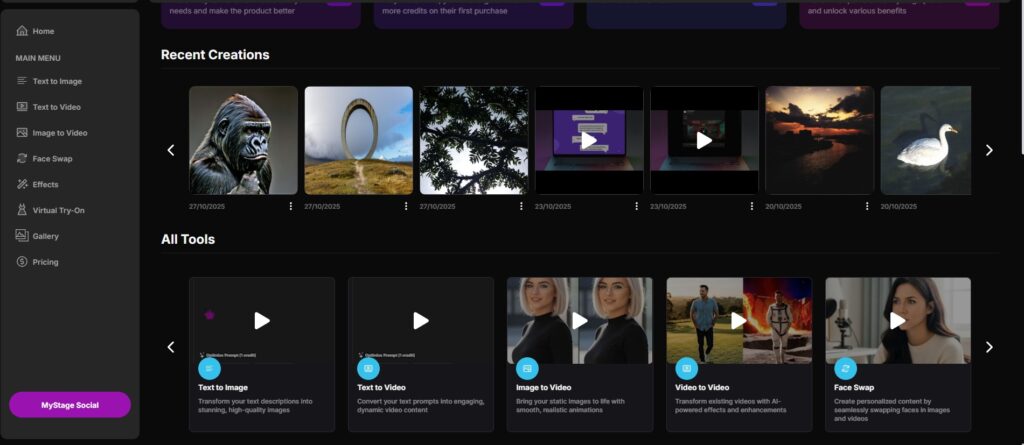
| Section | Description |
|---|---|
| Recent Creations | Contains the latest creations you have generated. |
| Left Panel | Your main navigation menu — includes all AI tools and quick links |
| All Tools | As in the left panel, you can access the type of AI Tools you want to use right away. |
| Effects | Quick access to a variety of effects. |
| Community | A selection of publicly available creations from other users. |
| Pricing | Located on your left panel. You can top-up credits to use the AI Tools. |
| Account Settings & Billing | Click your Profile Image in the upper right corner, then select Account Settings. |
💡 Tip: You can mark your favorite tools with a heart icon ❤️ to make them appear at the top of your Tools Panel for faster access.
⚙️ Key Dashboard Sections
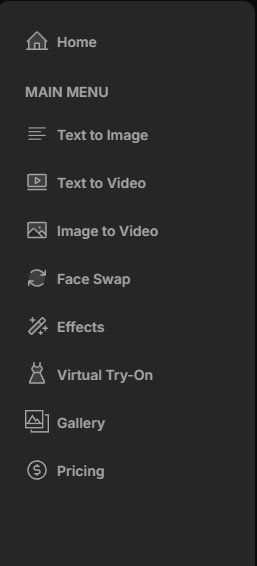
1. AI Tools Menu
Located in the left panel, this menu gives you instant access to every AI generation feature.
Text-to-Image, Image-to-Video, Video-to-Video, FaceSwap, Consistent Character, Music, and more.
Each tool has its own interface optimized for its function.
When you open a tool, it loads in the main workspace without leaving the dashboard.
Each tool offers various options, such as aspect ratio, camera control, and more. Not all options are available for every tool, as each supports different features.
Not all options are available for all tools, each one supports different ones.
2. Generation Workspace
This is the central area where you create, preview, and download your results.
Depending on the tool you use, you’ll find:
- Prompt field for instructions or descriptions
- Model selector (e.g., FLUX, Stable Diffusion)
- Resolution/aspect ratio settings
- Generate button
- Preview and download options
After a generation completes, results are automatically saved to your Gallery.
3. Gallery Section
Every generation you make, image, video, or audio, is automatically stored here.
You can:
- Revisit and download past results
- Check which model and settings were used
- View credit usage per generation
- Delete or re-run previous prompts
🗂 Your Gallery is securely stored in the cloud, accessible from any device when you log in.
4. Wallet & Credits Overview
Click your Icon in the top left corner, then select Account Settings. On your menu, you will see the Billing section.
- Current credit balance
- Recent transactions (spent/added)
- Links to buy credits or activate a subscription
- Bonus balance (e.g., referral rewards)
Credits can be used across all MyStage.AI tools using the same wallet.
5. Notifications & Updates
The bell icon in the top bar displays:
- Generation completions
- System updates or new feature releases
- Credit or payment confirmations
- Referral notifications
6. Publishing Tools
When you’re happy with a creation, you can save or download it directly from your dashboard.
- Click Publish on any generated file.
- Add a caption, hashtags, and visibility options (Public or Private).
- Confirm, and your creation is saved to your gallery.
⚡ Pro Tips for Efficiency
- Keep your most frequently used tools favorited for one-click access.
- Regularly check your History to track which prompts or settings perform best.
- Keep your browser up to date to avoid rendering issues.
- Watch for announcements in Notifications, new models, and features roll out frequently.
1.1.1 Managing Your Profile and Settings
🧠 Overview
The Account Settings section in MyStage.AI provides you with complete control over your creative identity, subscriptions, payments, and security, all in one place.
Each tab focuses on a different aspect of your account, allowing you to personalize your experience, protect your data, and manage your interactions with the MyStage ecosystem.
This guide explains every tab and its function inside the Settings panel.
To access it, click your profile picture on the top right corner and then select account settings.
👤 Profile
Your Profile tab manages all your public-facing information shared across MyStage.AI.
Here, you can:
- Update your Display Name and Username
- Add or change your Profile Picture (AI avatar or custom image)
- Add or change your Cover Picture.
- Write or edit your Bio
- Add social links (Instagram, X, website, etc.)
- Manage visibility preferences (Public / Private)
💎 Subscription
The Subscription tab allows creators to set up and manage your paid subscription plans for your followers.
You can define the monthly price, duration, and optional discounts to attract new subscribers.
Key Options:
- Monthly Price: Set the cost in credits (minimum 300 credits).
- Duration Packages: Offer 1, 3, 6, or 12-month subscriptions.
- Discounts: Add a temporary percentage discount (0–100%) and limit it by date or subscriber count.
- Disable Discount: Instantly stop an active promotion.
💡 Credit to USD value: 1 Credit = 0.01$ (1000 Credits = 10$)
All payments are handled through credits in the shared MyStage wallet, and active subscriptions renew automatically at the end of each billing period.
🔐 Security
Keep your account protected under the Security tab.
You can:
- Change your password
- Enable Two-Factor Authentication (2FA) (if available)
💡 For best security, update your password regularly and enable 2FA once supported.
🔔 Notifications
The Notifications tab lets you control what types of alerts you receive from MyStage.AI.
You can enable or disable notifications for:
- Followers & Subscribers
- Tips
- Post Likes
- Comments
- Comment Likes
- KYC Status Updates
- AI Tool Updates
- Post Purchases
- New Content
- Token Purchases
💳 Billing
Under Billing, you’ll find a detailed record of your payments and purchases.
You can:
- Complete KYC
- View all transactions and invoices
- Download receipts for your records
- Update or remove your payment methods
- Review any pending or failed payments
- See credit purchases and subscription charges
- See Transaction history
🤝 Referrals
The Referrals tab provides full insight into your referral activity and earnings.
It includes:
- Your unique referral link
- Real-time referral statistics (sign-ups, earnings, conversion rate)
- Commission structure:
- 10% of spend (Year 1)
- 5% (Year 2)
- 2.5% (Year 3)
- Total earned amount
💰 Referral rewards are paid directly by MyStage and do not affect creator payouts.
🪙 Crypto Wallet
The Crypto Wallet tab lets you manage token-based transactions and view blockchain-related activity.
You can:
- Connect or disconnect your crypto wallet
- Add funds using supported tokens
- View token balances and credit equivalents
🧠 Pro Tips
- Review your settings regularly to ensure all payment and security details are up to date.
- Keep your referral link visible in your bio or social posts for passive earnings.
- Use crypto payments to take advantage of the bonus credit system.
- Enable notification alerts for new AI tools or model updates — they roll out frequently.
1.2 AI Tools & Features
The AI Tools & Features section explains how to use every creative tool inside MyStage.AI.
Here you’ll learn how to generate images, videos, and other media types, how to select the best AI models for your goals, and how to optimize results for quality and speed.
Each guide includes tool-specific settings, credit usage, and best practices for professional output.
1.2.1 Music & Audio Generation: Creating Soundtracks with AI
The Music tool allows creators to produce AI-generated soundtracks, ambient audio, and voice clips directly within MyStage.AI.
Whether you’re designing a cinematic reel, a product video, or social media content, this tool gives you full creative control without requiring musical or audio engineering skills.
You describe the sound you want, choose a style, and let the AI compose and generate it for you.
🎵 How It Works
The AI analyzes your prompt and generates original audio from scratch, tailored to your mood, tempo, and genre.
You can generate short sound effects, full music loops, or voice samples for narration or character dialogue.
All audio outputs are royalty-free, meaning you can safely use them in personal or commercial projects within platform guidelines.
🧩 Audio Generation Options
| Category | Description | Examples |
|---|---|---|
| Music Generation | Creates instrumental soundtracks or loops | Ambient, cinematic, EDM, rock, lo-fi |
| Voice Generation | Produces realistic AI speech or character dialogue | Narrations, voiceovers, storytelling |
| Sound Effects | Generates short FX and background textures | Footsteps, transitions, digital beeps |
Each generation consumes credits depending on the length and model used.
⚙️ Settings & Parameters
When using the tool, you’ll see these configurable options:
| Setting | Description |
|---|---|
| Prompt | Describe the sound or music you want (e.g., “calm piano with rain background”) |
| Category | Choose between Music, Voice, or Sound FX |
| Duration | Set total length (5s to 60s) |
| Genre | Select mood or style (electronic, acoustic, cinematic, etc.) |
| Voice Type (for Voice AI) | Choose male, female, or robotic tones |
| Quality | Standard or high-quality output (affects credit cost) |
▶️ How to Generate
- Open Creator Studio → Music Generation
- Write a prompt describing the desired result
- Adjust duration, genre, and quality
- Click Generate
- Wait for the audio to render (usually 10–30 seconds)
You can then preview, download, or publish the audio file.
💾 Downloading & Publishing
Once your audio is ready:
- Click Download to save as an MP3 or WAV file.
🎧 Music and audio clips can be used across your other MyStage.AI projects, such as videos or image-to-video animations.
🧠 Pro Tips
- Use emotion words in prompts like “melancholic,” “uplifting,” “mystical,” or “tense.”
- Short prompts often produce cleaner compositions.
- For video soundtracks, try looping 10–15 second clips.
- Keep consistent BPM or mood if you plan to chain multiple tracks.
- Preview in headphones before publishing to verify sound quality.
⚠️ Troubleshooting
| Issue | Cause | Fix |
|---|---|---|
| Audio too short or cuts early | Duration too low | Increase duration to 15s+ |
| Voice sounds robotic | Wrong tone or genre mix | Adjust Voice Type and regenerate |
| No sound in preview | Browser muted or download pending | Refresh or unmute preview window |
| Generation failed | Internet interruption | Retry after checking connection |
1.2.1 Text-to-Image: How to Create AI Images with MyStage.AI
🧠 Overview
The Text-to-Image tool enables you to create original, high-quality images by simply describing what you want to see.
By combining advanced AI models like FLUX, Stable Diffusion,Midjourney and others, MyStage.AI gives creators the power to generate visuals for art, marketing, storytelling, or social media — without any technical setup.
All you need is a clear prompt, credits, and creativity.
✍️ Writing a Good Prompt
Your prompt is the most critical part of the generation process.
It tells the AI what to create, including subject, mood, lighting, and style.
Structure your prompt like this:
Subject + Style + Details + Environment + Lighting + Composition
Example:
“A cinematic portrait of a woman in golden light, ultra-detailed, soft focus, 35mm lens look, inspired by Renaissance art.”
💡 Tip: Be specific, but not overloaded. Overly long prompts may reduce quality or distort faces.
🧩 Choosing a Model
MyStage.AI offers several AI models for different visual styles and levels of realism:
| Model | Description | Best For |
|---|---|---|
| FLUX | Fast, cinematic realism with soft lighting and natural detail | Portraits, cinematic art, storytelling |
| Stable Diffusion XL | Balanced realism and stylization, widely customizable | Illustrations, concept art, product visuals |
| Midjourney-style | Artistic and detailed with rich color palettes | Creative artwork, fantasy, design inspiration |
🧠 Models may update periodically, always check the dropdown inside the tool for new additions.
⚙️ Generation Settings
When you open Text-to-Image, you’ll see several adjustable parameters, depending on what the model supports:
| Setting | Function |
|---|---|
| Prompt | Describe what you want to create |
| Negative Prompt | Tell the AI what to avoid (e.g., “blurry, low-res, text”) |
| Model Selection | Choose from FLUX, SDXL, etc. |
| Resolution | Select output size (e.g., 1:1, 16:9, 9:16) |
| Aspect Ratio | Defines the frame shape of your image |
| Quality | Higher values = better detail but slower generation |
| Seed (optional) | Reproduce the same result later using the same seed number |
Each generation displays its credit cost before you click “Generate.”
🪄 How to Generate
- Go to Creator Studio → Text-to-Image
- Choose your model
- Enter your prompt (and optional negative prompt)
- Adjust aspect ratio and settings
- Click Generate
- Wait for your image to render (usually a few seconds)
Your generated image will appear in the preview area and automatically save in your History for future use.
💾 Saving & Publishing
Once your image is ready:
- Click Download to save it locally, or
You can also edit the title, add hashtags, and adjust visibility (public, followers only, private).
🧠 Pro Tips for Better Results
- Use descriptive adjectives (e.g., dramatic lighting, hyperrealistic skin texture).
- Add art or camera terms for higher-quality results (35mm lens, depth of field, bokeh).
- For portrait-style images, include keywords like ultra-detailed face, soft light, studio portrait.
- Use the negative prompt field to remove unwanted artifacts (e.g., “blurry, distorted hands, extra limbs”).
- Experiment with multiple models — each interprets your prompt differently.
⚠️ Troubleshooting Common Issues
| Issue | Possible Cause | Solution |
|---|---|---|
| Image looks distorted | Prompt too vague or conflicting | Simplify or rephrase your prompt |
| Blurry output | Low steps or quality setting | Increase steps or choose higher quality |
| Wrong aspect ratio | Model default overrides | Reapply desired ratio manually |
| Generation failed | Browser timeout or insufficient credits | Refresh and retry after checking credits |
1.2.1 Virtual Try-On Tool: Try New Clothing
🧠 Overview
The Virtual Try-On tool in MyStage.AI allows you to simulate clothing and outfit changes on any model or AI-generated character, eliminating the need for new photoshoots.
It’s ideal for fashion creators, influencers, eCommerce brands, or anyone who wants to preview different styles on the same subject.
This feature uses advanced AI mapping to apply new outfits seamlessly while preserving the subject’s original body, face, and pose.
🧥 What You Can Do
- Replace or simulate different outfits on the same person or AI avatar.
- Generate realistic fashion previews for marketing, lookbooks, or social content.
- Test new clothing concepts before production.
- Combine with Flux, Kling, or Veo generations for cinematic outputs.
💡 The system keeps lighting, pose, and perspective consistent, perfect for realism.
⚙️ How to Use Virtual Try-On
- Go to Creator Studio → Tools → Virtual Try-On.
- Upload your base image or character render.
- Upload the target outfit you want applied (make sure its only the fabric, not weared by others)
- Click Generate.
Once ready, you’ll receive:
- A high-resolution preview image
- The option to regenerate, download, or use as input for further edits
🧩 Supported Inputs
| Type | Supported Formats | Notes |
|---|---|---|
| Base Image | JPG, PNG | Must show full or upper body clearly |
| Outfit Image (Optional) | JPG, PNG | Clean, flat clothing images work best |
| Prompt Description | Text | e.g. “Black leather jacket and jeans” |
⚠️ Make sure your image has clear lighting and visible contours for the best results.
💳 Credit Cost
The Virtual Try-On tool typically consumes 10 credits. Exact credit usage is displayed before generation.
🚫 Restricted Use
- You may not use the Virtual Try-On tool to imitate or represent real individuals without consent.
- Only use it for creative, fashion, or entertainment purposes in line with MyStage’s content policy.
🧠 Pro Tips
- Use neutral backgrounds for the best fabric blending.
- Try pairing this tool with Consistent Character to maintain model identity across outfits.
- For cinematic motion, export your try-on result and animate it with Kling or Luma Ray.
1.2.1 Image-to-Video: Turning Still Images into Motion
🧠 Overview
The Image-to-Video tool lets you bring static visuals to life.
Upload a single image, select your animation style and duration, and MyStage.AI transforms it into a realistic or stylized video clip, ready for social media, marketing, or creative storytelling.
The process utilizes cutting-edge models, such as Kling, Runway, WAN, and others, to automatically generate motion, depth, and camera dynamics.
🖼 Uploading an Image
- Open Creator Studio → Image-to-Video.
- Click “Upload Image” and select a JPG or PNG file
- Wait for the image preview to load before adjusting any settings.
💡 Use high-resolution, well-lit images for best results. Avoid heavily cropped or blurry inputs.
⚙️ Animation Settings
After uploading, configure your video parameters:
| Setting | Description |
|---|---|
| Model | Choose the AI engine (Kling, Runway, WAN, etc.) |
| Duration | Typical options: 3–10 seconds |
| Motion Intensity | Controls how much movement the camera or subject performs |
| Style | Realistic, Cinematic, Artistic, or Experimental |
| Aspect Ratio | Select 1:1, 16:9, or 9:16 depending on platform |
| Frame Rate | Standard 24–30 fps for cinematic feel |
Before generating, you’ll see the credit cost based on the model and length.
▶️ Generating the Video
- Adjust your settings.
- Click Generate.
- Wait while the AI renders frames and stitches them into motion (usually 15 seconds to a few minutes).
- Preview the result directly inside the Creator Studio.
All generated clips are automatically saved to History, where you can download or publish them later.
🎬 Publishing or Downloading
When satisfied:
- Click Download to save the MP4 file locally, or
🧠 Pro Tips for Better Results
- Start with portraits or full-body shots; they animate more naturally.
- Choose the Cinematic style for natural camera pans, or the Artistic style for stylized movements.
- Use the same subject or character image to create a series of animated posts.
- Keep the original image proportions consistent with your chosen aspect ratio.
⚠️ Troubleshooting
| Issue | Cause | Fix |
|---|---|---|
| Output is static | Re-crop or choose a matching ratio | Re-upload a sharper image, increase motion |
| Video distorted | Incompatible aspect ratio | Compress image, refresh, and retry |
| Generation fails | File too large or connection interrupted | Compress image, refresh and retry |
| Blurry motion | Low quality setting | Select higher quality or longer generation steps |
1.2.1 Video-to-Video: Transforming and Enhancing Existing Footage
🧠 Overview
The Video-to-Video tool allows you to upload an existing video and completely transform its look or style using artificial intelligence.
Whether you want to turn a standard clip into an animated sequence, enhance realism, or apply cinematic color and texture, MyStage.AI handles everything directly in your browser — no editing software required.
This tool is ideal for creators who want to repurpose content for TikTok, YouTube Shorts, marketing, or storytelling purposes.
🎞 Uploading Your Video
- Go to Creator Studio → Video-to-Video.
- Click Upload Video (supported formats: MP4, MOV, WebM).
- Keep clips under 30 seconds to ensure faster rendering and improved performance.
- Wait for the preview to appear before adjusting settings.
💡 Tip: Choose videos with clear lighting and steady framing — AI performs best with defined subjects and minimal motion blur.
⚙️ Transformation Settings
Once your clip is uploaded, you can configure the transformation parameters:
| Setting | Description |
|---|---|
| Model | Select the AI engine (e.g., WAN, Runway, Kling) |
| Style Preset | Choose between Realistic, Cinematic, Animated, or Stylized |
| Resolution | Output quality — 720p, 1080p, or higher |
| Aspect Ratio | 1:1, 16:9, or 9:16 (vertical for Reels/Shorts) |
| Motion Retention | Control how much of the original movement is preserved |
| Frame Interpolation | Smooths transitions between frames for natural flow |
Before rendering, you’ll see the credit cost and estimated processing time.
▶️ Generating the Output
- Review your settings and click Generate.
- The platform will process your video frame by frame using the selected model.
- Wait for completion (rendering typically takes 1–2 minutes).
- Preview your result within the Creator Studio.
The final video will appear under your History tab with full playback controls.
🎬 Common Use Cases
- Stylized Recreation: Turn real videos into painterly, anime, or cinematic styles.
- Realism Upgrade: Add detail, depth, or natural lighting to low-quality footage.
- Content Repurposing: Reuse old clips for new platforms with modern effects.
- Consistent Character Projects: Match video style to previous AI-created visuals for seamless storytelling.
💾 Exporting & Publishing
After generation, you can:
- Click Download to save the final MP4 locally.
- Set your visibility (Public, Followers-Only, or Private).
📘 The video’s metadata (duration, aspect ratio, and model used) is stored automatically in your History.
🧠 Pro Tips for Best Results
- Use short clips (under 15 seconds) for faster and cleaner generations.
- Avoid rapid camera movements; stable footage yields smoother transformations.
- The Cinematic preset works best for natural lighting and realistic tones.
- For creative transformations, experiment with Animated or Stylized modes.
- Reuse similar prompts across multiple clips to maintain consistent aesthetics.
1.2.1 Consistent Character: Keeping the Same Character Across Creations
🧠 Overview
The Consistent Character tool enables you to maintain a consistent appearance across multiple images or videos.
This feature is ideal for creators building AI influencers, virtual models, or storytelling characters that must remain visually consistent across scenes.
Instead of re-creating faces from scratch, MyStage.AI learns key facial features and applies them consistently across future generations.
🪄 How It Works
Consistent Character works by generating a base identity from your chosen reference image or face.
The AI then locks key visual elements, such as facial shape, eyes, hair color, and proportions, so that every new generation uses the same foundation, even if the prompt or model changes.
This makes it possible to:
- Create recurring AI personas or avatars
- Use the same face in different outfits, scenes, or poses
- Build continuity across stories, reels, or branded projects
🖼 Uploading a Reference Image
- Go to Creator Studio → Consistent Character.
- Upload a clear, front-facing image of the character or person you want to use.
💡 Tip: Use an evenly lit, high-resolution image with a neutral expression for best consistency.
⚙️ Generation Settings
When using Consistent Character, you can choose how strongly the AI adheres to the reference:
| Setting | Description |
|---|---|
| Character Strength | Defines how closely the new image follows the base face (50–100%) |
| Model | Choose the generation model. |
| Aspect Ratio | Frame type — 1:1 for portraits, 9:16 for reels, etc. |
| Prompt Input | Describe pose, outfit, or scene while the character stays constant |
| Output Type | Image or short video (depending on selected model) |
Each generation displays credit cost before rendering.
⚡ Pro Tips for Realism
- Keep your reference and generation model the same for consistent lighting and skin tone.
- Avoid extreme poses or angles that hide facial landmarks.
- Save character versions for different moods (e.g., smiling, neutral) to mix dynamically.
- When moving to video, always start from a generated still using the same profile.
⚠️ Troubleshooting
| Issue | Cause | Fix |
|---|---|---|
| Lighting mismatch | Model or style change | Use similar model or enable tone match |
| Failed to load character | Cache issue | Refresh or reload saved character list |
| Distortion in video output | Incompatible aspect ratio | Reuse original ratio (1:1 or 9:16) |
1.2.1 FaceSwap: How to Swap Faces Safely and Accurately
🧠 Overview
The FaceSwap tool allows you to seamlessly replace a face in an image or video with another, using advanced AI facial mapping.
It’s designed for creative, ethical, and consent-based use, allowing creators to build characters, improve photo consistency, or achieve cinematic results while respecting platform safety guidelines.
🧩 How FaceSwap Works
FaceSwap analyzes facial landmarks (eyes, nose, mouth, and structure) in both the source image/video and the target face, then blends them naturally using AI texture and lighting matching.
The system ensures realistic skin tones, accurate facial proportions, and smooth transitions — even across different lighting environments.
🖼 Uploading Your Files
- Open Creator Studio → FaceSwap
- Upload your target file (the image or video you want to modify)
- Upload your source face image (the person’s face you want to apply)
- Wait for previews of both files to appear
Supported formats:
- Images: JPG, PNG
- Videos: MP4, MOV, WebM
💡 For best results, use clear, front-facing face images with neutral lighting and no heavy filters or sunglasses.
⚙️ Settings & Adjustments
| Setting | Description |
|---|---|
| Face Detection Mode | Auto-detects all visible faces or allows manual selection |
| Blend Strength | Controls how strongly the new face replaces the original |
| Lighting Match | Adjusts shadows and color temperature for realism |
| Output Quality | Choose standard or high quality (affects credit cost) |
| Aspect Ratio | Keeps original or allows crop adjustments |
You’ll see the credit cost displayed before generation.
▶️ Generating the Result
- Review both uploads and adjust settings.
- Click Generate to start the process.
- Wait while the system analyzes and renders the output.
- Preview the final result directly in your workspace.
Your finished swap is saved in History, where you can download or publish it.
🧠 Best Practices
- Always use faces you have rights or permission to use.
- Align both images (similar angles, lighting, and face size).
- Avoid blurry or low-resolution uploads.
⚖️ Safety & Compliance
MyStage.AI enforces strict content and privacy standards:
- All FaceSwap generations are monitored under the platform’s content and consent policy.
- Violations may result in content removal or account restrictions.
🧩 Ethical rule: Only use this tool for authorized, creative, or fictional purposes (AI avatars, storytelling, branding).
1.2.1 Lip Sync Tool: Sync Dialogue to AI Characters or Avatars
🧠 Overview
The Lip Sync Tool in MyStage.AI brings your AI characters to life by synchronizing speech with realistic mouth and facial motion.
It’s perfect for creating talking avatars, interviews, or cinematic scenes where your AI character needs to speak naturally.
This tool uses deep learning alignment models to map audio to facial expressions, ensuring natural rhythm and emotional flow.
🗣️ What You Can Do
- Sync your voice recordings or AI-generated audio to any video or character render.
- Create talking head videos, dialogue scenes, or avatar introductions.
- Adjust lip accuracy, facial emotion intensity, and playback speed.
- Combine with Kling, Veo, or WAN to produce fully animated storytelling content.
⚙️ How to Use Lip Sync
- Go to Creator Studio → Tools → Lip Sync.
- Upload your base video or AI character render.
- Upload an audio file (MP3, WAV) or generate one using Text-to-Speech.
- Adjust timing and emotion settings (optional).
- Click Generate.
You’ll receive:
- A new video file with synchronized mouth movement.
- Download or further edit options within your project.
🎧 Supported Formats
| Type | Supported Formats | Notes |
|---|---|---|
| Video Input | MP4, MOV | Must include visible face |
| Audio Input | MP3, WAV | Clear voice only (no background noise) |
| Output | MP4 | Synced and ready to use |
💡 Tip: For best results, use clean audio and frontal face orientation.
🧩 Integration Options
You can integrate Lip Sync with other MyStage.AI tools:
- Use with Consistent Character to maintain identity across speaking clips.
- Pair with Virtual Try-On for fashion-based product presentation.
- Combine with Suno Music or AI soundtracks for dynamic storytelling.
🚫 Restrictions
- Do not use Lip Sync with real individuals’ likenesses or voices without consent.
- Deepfake or impersonation-style use is strictly forbidden.
- All audio content must comply with MyStage’s ethical and legal standards.
🧠 Pro Tips
- For dialogue accuracy, align speech pauses using the Timing Adjust slider.
- Combine short clips into one scene using Video-to-Video tools.
- Use generated speech from Text-to-Speech models for multilingual videos.
1.3 Credits & Subscriptions
The Credits & Subscriptions section explains how the MyStage.AI credit system works, including how to purchase credits, manage subscriptions, track usage, and understand the differences between plans.
Here you’ll learn how credits are consumed by each AI tool, how to top up your balance, and how subscriptions provide discounted rates and extra features.
1.3.1 Understanding Credits in MyStage.AI
🧠 Overview
Credits are the internal currency of MyStage.AI.
They are used to access all AI tools and generation features on the platform.
Each generation consumes a small number of credits based on complexity, model, and duration.
Credits make it easy to measure usage fairly and let you switch between tools without separate subscriptions.
💡 Credits Price:
The internal exchange rate of credits is 1Credit = $0.01 USD.This applies to withdrawals from Social Media earnings such as received tips, subscriptions etc from other users.
This doesn’t apply on purchasing credits, the USD value per credit changes based on your subscription plan.
💳 What Are Credits Used For?
Credits are required for:
- Text-to-Image, Image-to-Video,Video-to-Video.
- FaceSwap and Consistent Character tools
- Audio and Music generation
- High-resolution or long-duration outputs
Each tool clearly shows how many credits will be used before you click “Generate.”
This ensures complete transparency; you always know the cost upfront.
💡 Example:
A short 5-second Image-to-Video animation may cost 15 credits, while a high-quality 1080p Text-to-Image render might cost 8 credits.
🔄 How the Credit System Works
- You purchase credits through your Wallet using Stripe or Crypto.
- Every time you generate something, credits are deducted instantly.
- If a generation fails due to a system error, credits are refunded after a small period of time.
- Credits can be used across MyStage.AI to:
- Generate content in MyStage.AI
- Tip other users.
- Pay for creator subscriptions
🧩 Tip: Think of credits as “creative fuel” usable anywhere inside the MyStage ecosystem.
📊 How Credit Usage Is Calculated
The credit cost depends on:
| Factor | Example | Effect |
|---|---|---|
| Tool Type | Text-to-Image, FaceSwap | Each tool has a base cost |
| Model | FLUX, Stable Diffusion, WAN | Some models are heavier and cost more |
| Resolution | 512×512 vs 1080×1080 | Some Tools charge more for higher resolution |
| Duration | 3s vs 10s videos | Longer generations use more credits |
| Quality Settings | Standard vs High | High quality increases cost slightly |
You can always preview the total credit cost before confirming a generation.
🪙 Credit Validity
- Monthly credits expire 3 months after the purchase date.
- Yearly credits expire 12 months after purchase.
- Credit packages expire after 12 months of purchase.
- Free Credits expire after 5 days.
🧠 Managing Credits Efficiently
- Use standard quality when testing prompts; switch to high quality once satisfied.
- Keep an eye on your credit history in the Wallet tab.
- Subscribe yearly for discounted per-credit rates.
- Combine shorter prompts or scenes instead of generating long videos at once.
1.3.1 How to Buy Credits
🧠 Overview
Credits are the currency of MyStage.AI, allowing you to use all creative tools across the platform.
You can purchase credits at any time directly from Mystage.AI, using credit card (Via Stripe) or crypto (coming soon).
The process is quick, secure, and credits are added instantly after successful payment.
💳 Where to Buy Credits
- Log in to your MyStage.AI account.
- Go to “Pricing” in your left menu.
- Select a credit package (one-time or monthly).
- Confirm the transaction, and the credits will appear instantly in your wallet.
💡 Tip: You can view your new balance at any time in the top bar of your dashboard.
🪙 Available Payment Methods
| Method | Description | Notes |
|---|---|---|
| Credit/Debit Card (via Stripe) | Pay securely using Visa, Mastercard, or Amex | Instant processing |
| Crypto Payments | Pay with supported cryptocurrencies | Coming Soon |
All transactions are encrypted and processed securely.
You’ll also receive an automatic receipt via email after payment confirmation.
💼 Credit Packages
Credit packs are available in multiple sizes to fit different usage levels.
| Plan | Monthly Price | Credits | Approx. Cost per Credit | Ideal For |
|---|---|---|---|---|
| Basic | $10 / month | 700 credits | $0.0143 | Light users creating up to 175 images or 38 videos monthly |
| Plus (Most Popular) | $22 / month | 1,700 credits | $0.0129 | Regular creators posting often |
| Pro | $49 / month | 3,900 credits | $0.0126 | Daily creators or small teams |
| Creator | $79 / month | 6,500 credits | $0.0122 | Influencers, high-output users, or small studios |
| Max | $119 / month | 10,000 credits | $0.0119 | Agencies, studios, and large-scale creators |
🎁 💡 Yearly subscriptions are also available with an additional discount, applied automatically at checkout.
🔁 One-Time vs. Monthly Credits
- One-Time Packs: Buy once, credits stay for one year.
- Monthly Plan: Automatically refills your balance every month.
- Yearly Plan: Pay upfront, receive credits every month at a discount.
🧠 Choosing the Right Plan
| User Type | Recommended Plan |
|---|---|
| Occasional creator | Basic |
| Regular content poster | Plus |
| Professional creator | Pro |
| Influencer / Studio | Creator |
| Agency / Team | Max |
📊 If you generate daily or use multiple AI tools (like Text-to-Image and Video-to-Video), Pro or higher offers the best long-term value.
⚠️ Payment Issues
If your payment doesn’t go through:
- Ensure your card or account has sufficient funds.
- Disable any browser extensions that block payments or use an incognito window.
- If credits don’t appear after a successful payment, contact [email protected]
🧠 Pro Tips
- Larger credit packs give better value per credit.
- Keep at least 50 credits available to avoid interruptions while generating.
- You can always top-up with credit packs on top of your monthly credits.
1.3.1 One-Time vs Monthly & Yearly Plans
🧠 Overview
MyStage.AI offers three flexible ways to manage your credits:
One-Time Packs, Monthly Subscriptions, and Yearly Plans.
All plans give you access to the same AI tools; the difference lies in how credits are refilled, how long they last, and how much you save per credit.
MyStage.AI offers the best rates in the industry across all AI platforms that utilize third-party services; in some cases, we are even 70-80% cheaper.
💳 One-Time Credit Packs
One-Time Packs are prepaid bundles of credits that never expire.
They’re perfect for casual creators or anyone who prefers complete control over when to top up.
Key Features:
- Purchase anytime from the Pricing tab.
- Credits appear instantly after payment.
- No renewals; expires 1 year after purchase.
- Pay standard rate per credit.
💡 Best for: New users testing tools, or occasional creators who generate content on demand.
🔁 Monthly Subscriptions
Monthly plans automatically refill your credits every 30 days at a market’s best prices.
They’re designed for creators who generate regularly and want consistent value.
Monthly Plan Credit Expiration
Credits from a monthly plan remain valid for three months from the date they are issued.
For example:
If you subscribe to a Basic Monthly Plan on January 1, 2026, you’ll receive 700 credits each month starting that day and continuing for as long as your subscription is active.
Each monthly credit batch is valid for 90 days (3 months).
- Credits issued on January 1, 2026 will expire on April 1, 2026.
- Credits issued on February 1, 2026 will expire on May 1, 2026, and so on, unless used before their expiration date.
| Plan | Monthly Price | Credits | Cost per Credit | Best For |
|---|---|---|---|---|
| Basic | $10 | 700 | $0.0143 | Light users creating up to 175 images or 38 videos/month |
| Plus (Most Popular) | $22 | 1,700 | $0.0129 | Regular creators posting weekly |
| Pro | $49 | 3,900 | $0.0126 | Small teams and professionals |
| Creator | $79 | 6,500 | $0.0122 | Influencers, studios, or daily content creators |
| Max | $119 | 10,000 | $0.0119 | Agencies and high-volume users |
Benefits:
- Automatic monthly refill
- Roll-over of unused credits for 3 months, then they will expire.
- Upgrade, downgrade or cancel anytime
💡 Best for: Active creators who post frequently and want predictable monthly balance.
📅 Yearly Plans
Yearly subscriptions offer the same plans as monthly subscriptions, but are billed once per year with an additional 10% discount. Choosing an annual plan will unlock credits every month; it will not grant all the credits at once.
They’re ideal for committed creators or teams who want to maximize savings.
Yearly Plan Credit Expiration
Credits from a yearly plan remain valid for one year from the date they are issued.
For example:
If you subscribe to a Basic Yearly Plan on January 1, 2026, you’ll receive 700 credits each month starting that day and continuing until January 1, 2027.
Each monthly credit batch is valid for exactly one year.
- Credits issued on January 1, 2026, will expire on January 1, 2027.
- Credits issued on February 1, 2026, will expire on February 1, 2027, and so on, unless used before their expiration date.
- The platform always consumes the oldest credits.
| Plan | Yearly Price | Monthly Credits | Total Credits (per year) | Savings |
|---|---|---|---|---|
| Basic Yearly | $108 | 700 | 8,400 | $12 savings per year |
| Plus Yearly | $238 | 1,700 | 20,400 | $26 savings per year |
| Pro Yearly | $529 | 3,900 | 46,800 | $59 savings per year |
| Creator Yearly | $853 | 6,500 | 78,000 | $95 savings per year |
| Max Yearly | $1,285 | 10,000 | 120,000 | $143 savings per year |
Advantages:
- 10% discount on the total annual cost
- Credits renew automatically every month
- Locked pricing for 12 months
- Less billing management, one payment per year
💡 Important: Annual plans will unlock credits every month. You will not receive all the credits at once.
💳 One-Time Credit Packages
Perfect for occasional users or creators who prefer complete control with no renewals.
Credits are added instantly and expire after one year, like Annual Plans, making them ideal for topping up your balance at any time.
| Package | Price | Credits | Cost per Credit | Savings |
|---|---|---|---|---|
| Starter | $10 | 700 | $0.0143 | – |
| Bronze | $27 | 2,000 | $0.0135 | Save 6% |
| Silver (Recommended) | $52 | 4,000 | $0.0130 | Save 9% |
| Gold | $100 | 8,000 | $0.0125 | Save 13% |
| Platinum | $300 | 25,000 | $0.0120 | Save 16% |
| Diamond | $500 | 44,000 | $0.0114 | Save 21% |
| Titanium | $800 | 73,000 | $0.0110 | Save 23% |
Key Highlights:
- One-time purchase, no subscription required.
- Credits expire after one year.
- Immediate availability after payment.
- Use across all MyStage tools.
💡 Best for: Occasional users, freelancers, or anyone who prefers flexibility and no automatic billing.
⚖️ Comparison Table
| Feature | One-Time Pack | Monthly Plan | Yearly Plan |
|---|---|---|---|
| Payment Type | Single purchase | Recurring monthly | Recurring yearly |
| Credit Expiration | After One Year | After 3 Months | After One Year |
| Cost per Credit | Fair pricing similar to Plans | Discounted | Extra 10% discount |
| Auto Refill | ❌ No | ✅ Yes | ✅ Yes |
| Best For | Occasional use | Regular creators | Long-term creators/agencies |
🔄 Switching Between Plans
You can switch or cancel anytime:
- From One-Time → Upgrade to Monthly or Yearly for ongoing savings.
- From Monthly → Switch to Yearly to secure 10% off long-term.
- From Yearly → Downgrade or cancel renewal before the next cycle.
🧠 Choosing the Right Option
| Creator Type | Recommended Option |
|---|---|
| New or light user | One-Time Pack |
| Active weekly creator | Monthly Plan (Plus or Pro) |
| Professional studio or agency | Yearly Plan (Pro, Creator, or Max) |
📊 Tip: If you plan to use MyStage.AI regularly for more than three months, the Yearly Plan gives the best long-term value and lowest cost per credit.
1.3.1 Checking Your Credit Balance & Usage
🧠 Overview
Your Wallet in MyStage.AI gives you a full overview of your credits, how many you have, how they’re being used, and your recent transactions.
This helps you stay in control of your creative spending, track generation costs, and plan when to top up or upgrade your subscription.
💼 Where to Find Your Credit Balance
- Log in to MyStage.AI.
- Your Balance is available in the top right corner, showing as “Credits.”
This number updates instantly after each generation or purchase.
📊 Viewing Credit Usage History
To see how your credits are being spent:
- Click your Username on top right cornet → Account Setting → Billing
- Review each generation with details such as:
- Tool used (e.g., Text-to-Image, FaceSwap, Video-to-Video)
- Model used (e.g., FLUX, SDXL, WAN)
- Date
- Credit cost per generation
All completed generations and credit deductions are listed in chronological order.
🧾 Viewing Transactions & Purchases
The Billing section under your account lists every payment you’ve made — including:
- Credit pack purchases
- Subscription renewals
- Bonuses or referral credits
- Failed or pending payments
🔁 Real-Time Updates
Your wallet automatically updates whenever you:
- Generate new content (deduction)
- Add credits (increase)
- Receive referral rewards or bonuses
There’s no delay, your new balance appears within seconds.
⚙️ Troubleshooting Wallet Issues
| Issue | Cause | Fix |
|---|---|---|
| Balance not updating | Browser cache | Refresh page or log out/in |
| Missing credits after failed generation | Server error | Contact [email protected] for verification |
| Payment not showing | Pending confirmation | Wait 1–5 minutes or check Billing tab |
| Wrong total | Overlapping sessions | Refresh all browser tabs of MyStage.AI |
1.3.1 Refunds & Failed Payments
🧠 Overview
At MyStage.AI, all payments are handled securely through Stripe with instant wallet updates once confirmed.
While most transactions complete successfully, this guide explains how refunds and failed payments are managed, along with what to do if you encounter an issue.
💳 When Refunds Apply
Refunds are only provided under specific conditions to protect both users and the platform.
You may be eligible for a refund if:
- You were charged twice for the same transaction.
- Your generation failed due to a verified system error, and credits were still deducted.
- A payment was processed, but the credits didn’t appear after more than 15 minutes.
⚠️ Refunds are not issued for used credits, partial usage, or dissatisfaction with AI output results since generation costs are consumed during processing.
⚠️ When Refunds Are Not Eligible
Refunds do not apply to:
- Credits already consumed through AI generation.
- Changes of mind after a successful purchase.
- Account inactivity or unused subscriptions.
- Violations of platform policies or misuse of tools.
💡 Ineligible cases can still be reviewed for partial compensation (e.g., bonus credits) at MyStage’s discretion.
🧾 How to Request a Refund
If you believe a charge was made in error:
You can email [email protected] directly with:
- Your registered email & username
- Transaction ID or receipt number
- Description of the issue
Once approved, refunds are issued to your original payment method. (Stripe or Credits)
🧩 Handling Failed Payments
Sometimes a payment may fail due to:
- Expired or invalid card details
- Insufficient funds
- Interrupted network connection
- Crypto network delays or incorrect address
When this happens:
- The transaction is automatically canceled; you won’t be charged.
- You’ll receive a “Payment Failed” notification via email.
- Retry the payment after correcting your details or selecting a different method.
🧠 Tip: You can also update your payment method directly under Settings → Billing → Active Subscription
1.3.1 How to Cancel or Change Your Subscription
🧠 Overview
MyStage.AI offers you complete control over your subscription, enabling you to upgrade, downgrade, or cancel at any time directly from your account settings.
There are no cancellation fees, and any remaining credits stay in your wallet after cancellation until they expire.
This guide explains how to manage your plan smoothly, ensuring you don’t lose progress or access.
⚙️ How to Change Your Plan
You can switch to a higher or lower plan anytime.
- Go to Account Settings → Billing → Subscription
- Click “Change Plan”
- Select your new plan
- Confirm the change
Your new plan activates immediately:
- Upgrading adds new credits right away.
- Downgrading applies after your current billing period ends.
❌ How to Cancel Your Subscription
If you wish to stop automatic renewals:
- Go to Account Settings → Billing → Subscription
- Click “Cancel Subscription”
- Confirm the cancellation when prompted
Once canceled:
- Your plan will remain active until the end of the current billing cycle.
- You can continue generating and publishing normally.
- Remaining credits will stay available until they are used.
⚠️ After cancellation, your plan will not renew automatically, you’ll need to re-subscribe manually if you wish to continue.
🧾 Viewing Renewal Dates
You can always check your renewal date under:
- Account Settings → Billing → Subscription
This shows the exact time your next payment will process (monthly or yearly).
🪙 What Happens to Your Credits
- Any remaining credits remain in your wallet after cancellation until they expire.
- They can still be used normally across all MyStage tools.
- You can also top up with One-Time Credit Packs at any time.
1.4 Creator Studio
The Creator Studio is the central hub of your MyStage.AI experience.
It’s where you generate AI content, manage drafts, view your history, and monitor your activity.
This section explains every part of the Creator Studio interface, from uploading and editing to analytics and publishing, so you can create, organize, and manage your work efficiently.
1.4.1 Overview of the Creator Studio Dashboard
The Creator Studio is the primary control center of MyStage.AI, designed to enable you to create, organize, and publish your AI-generated content in a single, streamlined interface.
From here, you can access all AI tools, manage your history and drafts, all without leaving the page.
🧭 Layout Overview
The Creator Studio is organized into three main areas:
| Section | Description |
|---|---|
| Left Sidebar | Quick navigation menu for tools and gallery |
| Main Workspace | Displays your current credit balance and account settings |
| Top Bar | Displays your current credit balance, and account settings |
Everything is accessible with one click, so you can move seamlessly between creation and management.
🎨 Main Features at a Glance
| Feature | Purpose |
|---|---|
| AI Tools Panel | Write prompts, select models, aspect ratios, and quality settings before generating. |
| Prompt & Settings Panel | Write prompts, select models, aspect ratios, and quality settings before generating |
| Preview Window | Displays generated results with options to download, re-generate, or publish. |
| Gallery | Stores all your completed generations for easy re-use or download. |
| Publish Button | Saves your content to your gallery with caption and visibility options. |
| Wallet & Credits | View balance, purchase more credits, or upgrade plan instantly |
💡 Tip: You can open multiple tools in new tabs — MyStage automatically saves your progress in each.
🔁 Unified Workflow
The Creator Studio centralizes your MyStage.AI workflow:
- All generated content is stored under your account.
- You can publish directly or keep creations private.
- Credits, wallet, and referral earnings are fully synchronized between both platforms.
💡 You don’t need a second login — your MyStage.AI credentials work on both sites.
⚙️ Troubleshooting
| Issue | Cause | Fix |
|---|---|---|
| Dashboard not loading | Browser cache or slow network | Refresh or clear cache |
| Publish button disabled | Account not fully set up | Connect via Profile Settings |
| Wallet not syncing | Temporary server delay | Wait a few seconds or reload |
1.4.1 Gallery Tab
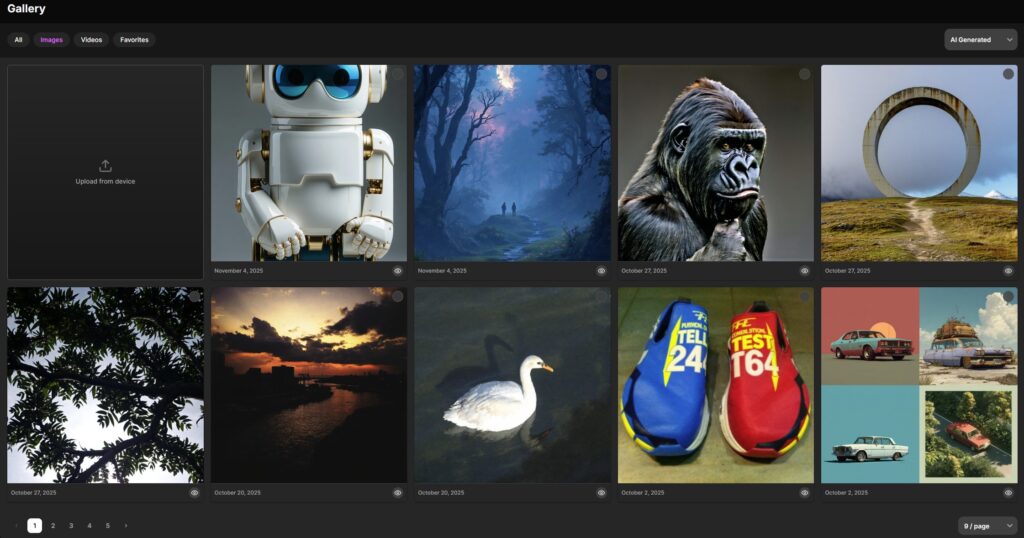
The Gallery Tab is your personal archive of all generated content on MyStage.AI.
Every image, video, audio file, or FaceSwap you create is automatically saved here — ensuring you never lose your work, even if you refresh or close the browser.
From the Gallery tab, you can preview results, download them, or download them.
📂 Accessing the History Tab
- Log in to MyStage.AI.
- Click “Gallery” in the left sidebar of your Creator Studio.
- You’ll see a list of all your previous generations, sorted by date (newest first).
Each entry includes:
- A small thumbnail preview
- Tool used (e.g., Text-to-Image, FaceSwap, etc.)
- Model name (e.g., FLUX, SDXL, WAN)
- Date and time of creation
🖼 What You Can Do in History
| Action | Description |
|---|---|
| Preview | Open the image, video, or audio in full size for closer inspection |
| Download | Save the file locally in your preferred format (JPG, PNG, MP4, MP3) |
| Publish | Download or save the selected creation |
| Duplicate Prompt | Reuse the same settings to regenerate a new variation |
| Sort / Filter | View results by date, tool type, or generation model |
💡 Tip: The duplicate function is perfect for generating consistent variations or improving previous outputs.
🧩 How Long Is Your History Stored
All your creations remain saved indefinitely, as long as your account stays active.
However, extremely old or inactive items may be archived after 12 months to optimize system performance.
You’ll always be notified before any archival action, and you can re-download your content at any time.
🔒 Privacy & Visibility
- Items in your History are private by default.
- Only you can view or access them unless you choose to make them public.
- Deleting an item from History also removes it from your personal archive, but not from any already published posts.
1.4.1 Publishing and Visibility Options
🧠 Overview
Once you’ve generated your AI content in MyStage.AI, you can save and download your creations directly from the Creator Studio.
This guide explains how to publish, set visibility, and manage the reach of your content.
🚀 How to Publish Content
You can publish from multiple sections:
- Immediately after generation
- From your Gallery Tab
To publish:
- Click “Publish” under your generated content preview.
- Add your caption or description.
- Choose visibility settings (Public, Subscribers Only, or Private).
- Click Confirm Publish.
💡 Tip: Each published post links back to your creator profile, allowing followers to subscribe or interact with your work.
🔒 Visibility Options
You control who can see each post using visibility settings at the time of publishing:
| Visibility Option | Description | Best For |
|---|---|---|
| Public | Anyone can view and interact with your content | Promotion and discovery |
| Subscribers Only | Only paying subscribers can view | Exclusive content and monetization |
| Private | Only you can see the post | Testing or draft publishing |
📊 Public posts help with reach and engagement, while Subscribers Only posts are ideal for paid, high-value creations.
✍️ Editing Captions & Hashtags
After publishing:
- Go to your Gallery.
- Select the post you want to edit.
- Click “Edit Post.”
- Update your caption, hashtags, or visibility.
- Save changes — they’ll apply instantly.
💡 Use relevant hashtags to increase discoverability in search results.
💰 Publishing Benefits
- Reach followers directly across both platforms.
- Unlock tips, boosts, and subscriptions from your posts.
- Track performance analytics (views, likes, engagement).
- Build your creator portfolio with consistent visibility.
All content you create is saved to your gallery for easy access and management.
⚙️ Deleting or Unpublishing Content
To remove a post:
- Go to your Gallery in the Creator Studio.
- Click the “…” menu on the post.
- Choose “Delete”.
- Confirm your choice.
Deleted posts are removed permanently from your feed and cannot be recovered.
Unpublished posts move back to your Drafts for future edits or re-publishing.
🧠 Pro Tips
- Use Public posts to attract followers, and Subscribers Only for premium exclusives.
- Alternate between both types for balanced growth and income.
- Optimize captions with creative or informative text to increase engagement.
- Always double-check visibility before confirming changes take effect immediately.
1.4.1 AI Models Library
🧠 Overview
The AI Models Library in MyStage.AI brings together all supported tools and model families — from image and video generation to audio, lip-sync, and effects.
Each model has a unique purpose and strength, designed for professional creators who want full creative control over their workflow.
This guide explains all current models available in MyStage.AI, what they do, and when to use them.
🎨 Text-to-Image (T2I) & Image-to-Image (I2I)
| Model | Type | Best For | Notes |
|---|---|---|---|
| Flux Dev / 1.1 / 1.1 Pro / Ultra / Kontext / Kontext Pro / Max | Text To Image | Realistic and cinematic image generation | Exceptional lighting and detail accuracy |
| Stable Diffusion 3.5 / Core / Ultra | Text To Image | Artistic, flexible, and fast rendering | Ideal for concept art and quick iterations |
| Nano Banana | Text To Image & Image To Image | Ultra-fast image generation | Lightweight and efficient |
| Higgsfield Soul ID | Character & Text To Image | Consistent human and stylized character design | Perfect for influencers or character creation |
| Seedream 4 | Text To Image & Image To Image | Dreamlike, aesthetic compositions | Ideal for creative visuals and fantasy scenes |
| Midjourney (API) | Text To Image | Stylized and artistic results | Great for branded visuals and storytelling |
💡 Tip: For realistic portraits or influencer visuals, use Flux Pro or Soul ID. For artistic or stylized imagery, Stable Diffusion 3.5 Ultra or Seedream 4 perform best.
🎬 Text-to-Video (T2V) & Image-to-Video (I2V)
| Model | Type | Best For | Notes |
|---|---|---|---|
| Sora 2 / Sora 2 Pro | Text To Video, Image To Video & Video To Video | Realistic motion and cinematic storytelling | Ideal for long-form and creative animations |
| Veo 3 / Veo 3.1 | Text To Video & Image To Video | Natural movement and vivid lighting | Great for short storytelling or expressive clips |
| Kling 1.6 / 2 / 2.1 / 2.1 Master / 2.5 (Upcoming) | Text To Video & Image To Video | High realism and consistent face motion | Best for human-based or cinematic content |
| WAN 2.1 / 2.5 | Text To Video & Image To Video | Realistic movement with artistic control | Perfect for action, motion, and fantasy videos |
| Hailuo 2 / 2.3 | Text To Video & Image To Video | Fast and detailed rendering | Good for product-style and cinematic shots |
| Seedance / Seedance Character | Text To Video, Image To Video & Reference-to-Video | Movement with reference input | Great for replicating real poses or gestures |
| Luma Ray 1.6 / 2 / 2 Flash | Image To Video | Smooth image-to-video transformation | Ideal for influencer-style or lifestyle videos |
| Runway Gen3 / Gen4 Turbo | Image To Video & Video To Video | Quick professional conversions | Excellent for social media content |
| Runway Act TWO | Video To Video | Stylized editing and reanimation | Great for creative remixes or cinematic filters |
| Luma Modify | Video To Video | Enhancing or modifying existing videos | Ideal for retouching or refining details |
| Seedance Character (Ref-to-Video) | Reference To Video | Pose-driven animation generation | Great for creators working with model references |
| Minimax Hailuo 2 | Text To Video | Balanced quality and render speed | Optimized for fast video previews |
💡 Tip:
- Use Veo 3.1 or Kling 2.1 Master for storytelling-quality videos.
- WAN 2.5 and Hailuo 2.3 are best for realism and expressive motion.
- For fast results, Luma Ray Flash or Runway Gen4 Turbo provide top speed.
🎭 Video-to-Video (V2V) & Special Effects
| Model | Type | Best For | Notes |
|---|---|---|---|
| Runway Act TWO | Video To Video | Full scene transformation | Ideal for cinematic remastering |
| Luma Modify | Video To Video | Enhancement and retouching | Great for improving lighting and textures |
| WAN 2.2 Animate & Replace | Video To Video | Animation with replacement effects | Good for continuity and visual storytelling |
| Higgsfield DoP (Depth of Perception) | Effects | Cinematic depth and lens effects | Adds realism to final renders |
💡 Combine Luma Modify or DoP Effects with Kling or WAN outputs for a studio-grade finish.
🧍♀️ Character, Face & Lip Tools
| Model | Type | Best For | Notes |
|---|---|---|---|
| Higgsfield Soul ID Character | Character | AI persona and influencer creation | Generates consistent facial identity |
| Runway Gen4 Turbo Character | Character | Realistic full-body or portrait renders | Excellent for professional creators |
| Seedance Character | Reference To Video | Pose and motion-based animation | Ideal for influencers or motion creators |
| Sync.so LipSync | LipSync | Voice-to-mouth synchronization | Perfect for dubbing or talking avatars |
| FaceSwap | Image & Video | Replace or merge faces accurately | Common for creative edits and parody-style videos |
| Virtual Try-On | Image & Video | Outfit and appearance simulation | Used for fashion and influencer previews |
💡 For consistent faces across videos, pair Soul ID Character with Kling 2.1 Master or Veo 3.
🎵 Audio & Music Generation
| Model | Type | Best For | Notes |
|---|---|---|---|
| Suno Music | Text To Music | Full AI song or instrumental creation | Great for background music, intros, or soundtracks |
💡 You can generate custom soundtracks for your MyStage videos using Suno Music and sync them with your AI videos before publishing.
🧠 Choosing the Right Model
| Goal | Recommended Models |
|---|---|
| Ultra-realistic humans | FLUX 1.1 Pro, Soul ID, Kling 2.1 Master |
| Cinematic storytelling | Veo 3 / WAN 2.5 / Sora 2 |
| Fast generation & previews | Nano Banana / Luma Flash / Runway Turbo |
| Stylized or anime visuals | Stable Diffusion 3.5 / Seedream 4 |
| Music | Suno |
| AI influencer or brand persona | Soul ID Character + Veo 3 |
1.5 Account & Settings
The Account & Settings section helps you manage your MyStage.AI account, profiles, and personal preferences.
You can update your information, customize your creator identity, secure your account, and manage multiple profiles, all under one login.
MyStage.AI supports multiple profiles under the same account, allowing creators to separate projects, brands, or personas without creating separate logins.
1.5.1 Multiple Profiles Explained
🧠 Overview
MyStage.AI allows every user to create and manage multiple profiles under a single account, each with its own identity, followers, and content, but sharing the same wallet and credits.
This unique feature is designed for creators, agencies, and brands who manage more than one persona or niche.
🧍♀️ Why Multiple Profiles Matter
Many creators operate in different styles or industries, for example:
- One profile for AI art
- One for influencer content
- Another for fashion, music, or other creative content
Instead of creating separate accounts, you can manage all your profiles from one dashboard, with a shared wallet and subscription plan.
💡 Perfect for: agencies, studios, or multi-niche creators who want to keep their brands organized and consistent.
🔗 Shared Wallet and Unified Credits
All your profiles share:
- The same credit balance (for AI generations)
- The same wallet (used for subscriptions, tips, and boosts)
- The same referral dashboard and rewards
This system allows you to:
- Spend credits on any profile
- Use earnings from one profile to generate content for another
- Simplify billing and credit tracking across all projects
⚡ Example: If one profile earns 2,000 credits from subscribers, those credits instantly become available for all your other profiles.
🔁 Switching Between Profiles
Switching is fast and intuitive:
- Click your profile icon in the top-right corner.
- Select “Switch Profile.”
- Choose the identity you want to manage.
The Creator Studio, Analytics, and History tabs will automatically update to match the selected profile.
Each profile maintains its own content, followers, and analytics — but still connects to the same wallet.
🎯 Niche Targeting and Branding
Each profile can represent a unique niche or brand:
- Customize bio, display name, category, and profile picture
- Post unique content tailored to specific audiences
- Build independent followings under each identity
- Keep analytics and engagement separated for better insights
💡 You can manage a professional studio, an AI influencer, and a personal creator profile — all under one account.
🔁 Transferring Profiles Between Accounts
Profiles can be transferred permanently to another user’s account.
This is often used for:
- Selling an established brand
- Handing over a client’s managed profile
- Moving a creator’s profile to their own account
🔒 Important Details
- Transfers are done via Settings → Profile or mystage.ai/settings#profile.
- You must enter the email address of the receiving account.
- Once confirmed, the transfer is immediate and irreversible.
After transfer:
- The new owner gets full access to the profile, followers, and analytics.
- The original owner loses all access permanently.
⚠️ Always verify the recipient’s account before confirming. Profile transfers cannot be undone.
🧠 Best Practices
- Keep your profile identities distinct to attract different audiences.
- Regularly review analytics to understand which profile performs best.
- Use consistent posting schedules for each niche.
- Consider using the default profile setting to avoid publishing under the wrong name.
- Always export the content you want to keep before transferring a profile.
⚙️ Troubleshooting
| Issue | Cause | Fix |
|---|---|---|
| Missing profile | Not yet activated | Verify the recipient and retry |
| Can’t switch | Browser cache or session error | Refresh or clear cache |
| Wallet not showing | Temporary sync issue | Re-log into MyStage.AI |
| Transfer failed | Invalid recipient email | Verify recipient and retry |
1.5.1 Security & Privacy Settings
🧠 Overview
At MyStage.AI, your account security and privacy are top priorities.
From two-factor authentication to device management, MyStage gives you complete control over how your data is protected and who can access your account.
This guide explains how to secure your login, manage active sessions, and adjust privacy settings for your content and profiles.
🔐 Two-Factor Authentication (2FA)
Two-Factor Authentication adds an extra layer of protection to your MyStage account by requiring a verification code at login.
This prevents unauthorized access even if someone has your password.
🧭 To enable 2FA:
- Go to Account Settings → Security.
- Click Enable Two-Factor Authentication.
- Link your authenticator app (e.g., Google Authenticator, Authy).
- Scan the provided QR code.
- Enter the 6-digit code to confirm setup.
💡 Once activated, you’ll need both your password and a verification code each time you log in from a new device.
🔑 Password Management
You can reset or change your password anytime:
- Go to Account Settings → Security → Change Password.
- Enter your current password, then set a new one.
- Confirm to save changes.
If you forget your password:
- Click “Forgot Password?” on the login page.
- Check your email for a reset link.
- Follow the instructions to set a new one.
💡 Use a strong password combining uppercase, lowercase, numbers, and symbols.
🕵️ Privacy Settings
Under Settings → Privacy, you can control how visible your profiles and content are across MyStage.
| Setting | Description |
|---|---|
| Profile Visibility | Choose whether your profile is public or private |
| Search Discoverability | Hide or show your profile in search results |
| Follower Requests | Approve followers manually for private profiles |
| Content Visibility | Set default publishing visibility (Public / Subscribers Only / Private) |
You can also hide your online status and disable notifications for profile activity.
🧱 Data Protection and Security Compliance
MyStage follows strict industry standards for data protection:
- All passwords are hashed and encrypted.
- Payments are processed via secure PCI-DSS compliant gateways.
- User data is stored in encrypted environments.
- No private data is shared without explicit consent.
🛡️ You can request a copy of your data or full deletion by contacting [email protected].
🧠 Pro Tips
- Enable 2FA immediately for maximum protection.
- Never share login details with others.
- Use a password manager to avoid reusing passwords across platforms.
- Keep your recovery email up to date in your Account Settings.
⚙️ Troubleshooting
| Issue | Cause | Fix |
|---|---|---|
| 2FA not working | Wrong time sync on device | Resync your authenticator app |
| Session list empty | Cache cleared or expired | Re-log to refresh data |
| Password reset email not received | Spam filter | Check spam folder or whitelist MyStage |
| Profile visibility not saving | Network lag | Retry after saving again |
1.5.1 Referral Program & Rewards
🧠 Overview
The MyStage Referral Program lets you earn rewards by inviting new users to join MyStage.AI.
You’ll earn a percentage of all their spending, including subscriptions, AI tools, boosts, and tips, for up to three years.
Rewards can be redeemed as credits for your wallet or withdrawn as cash payouts.
This program rewards both individual creators and agencies that help grow the MyStage ecosystem.
💎 How the Referral Program Works
When you create a MyStage account, you automatically receive a unique referral link.
Anyone who signs up through your link will be considered your referral for a period of three years.
Minimum withdrawal payout is 50$. Earnings are showns as credits and can be spent on Tools or redeemed.
💰 Commission Structure:
| Year | Reward Percentage | Description |
|---|---|---|
| 1st Year | 10% | You earn 10% of everything your referral spends |
| 2nd Year | 5% | You continue earning 5% of their spending |
| 3rd Year | 2.5% | Rewards continue at 2.5% for the final year |
After the third year, the referral expires automatically.
💡 Rewards are paid directly by MyStage, not deducted from the creator’s earnings.
🔗 How to Access Your Referral Link
- Go to Account Settings → Referrals.
- Copy your unique referral link.
- Please share it on social media, blogs, or via direct messages.
Every user who registers using your link will appear in your referral dashboard.
📊 Referral Dashboard Overview
Your Referral Dashboard includes:
- Total referred users
- Each user’s activity (active / subscriber / inactive)
- Total earnings (credits or cash)
- You can also filter by date, user activity, or transaction type for more detailed reporting.
🪙 Redeeming Referral Rewards
You earnings are in credits, meaning that you don’t receive automaticaly cash, but credits that can be later converted to cash.
You can use referral earnings in two ways:
| Option | Description | Minimum |
|---|---|---|
| Spend on AI Tools | Use credits to generate content. | No minimum |
| Cash Withdrawal | Request payout via Stripe | $50 minimum |
⚠️ Payouts are reviewed for accuracy and processed within 1–5 business days.
🧾 Eligible Transactions
You earn commissions from nearly all spending by your referrals, including:
- AI generations (credits)
- Subscriptions and upgrades
- Boosts and pay-per-view purchases
- Tips and in-platform transactions
💡 Promotional or bonus credits given by MyStage do not generate referral rewards.
🤝 Agencies and Partner Referrals
In addition to standard user referrals, agencies and strategic partners can apply for custom referral agreements that offer higher rewards.
To apply:
- Contact [email protected].
- Provide information about your network, agency, or creator community.
- A member of the MyStage Partnerships Team will review your proposal.
Qualified agencies receive:
- Custom referral percentages
- Early access to platform updates
💡 This is ideal for agencies managing large groups of creators or networks helping onboard talent to MyStage.
🧠 Best Practices
- Share your referral link on platforms where creators gather, such as Discord, X (Twitter), Reddit, or niche communities.
- Create tutorials or short videos showing how to use MyStage tools — these often convert better.
- Focus on inviting quality creators who actively use the platform.
- Use earned credits to keep generating and growing your content presence.
- Track monthly performance through your referral dashboard.
📈 Top referrers are highlighted on the Referral Leaderboard and may receive bonus credit rewards.
⚙️ Troubleshooting
| Issue | Cause | Fix |
|---|---|---|
| Referral not tracking | User didn’t use your link | Ensure the signup came from your unique referral URL |
| Missing commission | Payment still processing | Wait 24 hours — dashboard updates automatically |
| Payout delayed | Manual verification | Typically resolved within 1–3 business days |
| Referral link invalid | Outdated format | Regenerate your referral link in Settings → Referrals |
1.5.1 Deleting or Deactivating Your Account
You can deactivate or permanently delete your MyStage.AI account at any time.
This article explains the difference between the two options, what happens to your profiles, and the steps required to safely close your account.
❌ Deactivation vs. Deletion
| Action | Description | What Happens |
|---|---|---|
| Deactivate Profile | Permanently deletes your profile. | Irreversible the profile gets deleted with all it’s data. |
| Delete Account | Permanently deletes your account. | Irreversible, the profile is deleted with all its data, including money. |
⚠️ Before taking any action, make sure to withdraw any referral rewards and spend remaining credits.
💤 Deleting Your Profile
Deleting your profile is a permanent action and cannot be reversed.
This will erase all data of the profile and content across MyStage.AI.
To delete your account:
- Go to Account Settings → Profile
- Click Delete Profile.
- After confirming:
- You will no longer appear in search or leaderboards.
- All profiles, history, drafts, and posts are permanently erased.
- Your wallet and credit balance will remain in your account and won’t be deleted.
- Referral rewards and payout history are cleared.
🗑️ Deleting Your Account Permanently
Deleting your account is a permanent action and cannot be reversed.
This will erase all data, profiles, and content across MyStage.AI.
To delete your account:
- Go to Account Settings → Profile
- Click Delete Account.
After confirming:
- All profiles, history, drafts, and posts are permanently erased.
- Your wallet and credit balance are deleted.
- Referral rewards and payout history are cleared.
- You will no longer appear in search or leaderboards.
⚠️ Important: Deletion is irreversible. Once complete, your data cannot be recovered under any circumstance.
💰 Wallet, Credits & Rewards on Deletion
Before deleting:
- Use or withdraw any available credits.
- Redeem or cash out any referral earnings.
- Cancel any active subscriptions to avoid renewal charges.
All remaining balances will be voided after deletion.
🧩 Profiles Linked to Your Account
If you have multiple profiles:
- All associated profiles are deleted with your account.
- To keep a specific profile active, transfer it to another user before deleting.
- Go to https://mystage.ai/settings#profile
- Select the profile and click Transfer Profile.
- Once transferred, it will remain active under the recipient’s account.
💡 Tip: Always transfer important profiles before deleting your main account.
🔐 Data Protection
MyStage follows GDPR and privacy compliance standards:
- All deletion requests are processed within 7 days.
- Once deletion is confirmed, all personal data, uploads, and metadata are erased from active servers.
- Aggregated analytics (non-personal data) may be retained for security and performance reporting.
If you need help with a deletion request, email [email protected] using your registered account email.
🧠 Best Practices
- Always transfer or back up any important creations before deleting.
- Consider deactivating instead if you’re unsure.
- Double-check that your referral or agency earnings have been withdrawn.
- Use the profile transfer feature if your brand or identity will continue under someone else’s management.
⚙️ Troubleshooting
| Issue | Cause | Fix |
|---|---|---|
| Can’t delete account | Active subscriptions | Cancel subscriptions first |
| “Profile still active” message | Linked profiles not transferred | Transfer or delete all profiles before proceeding |
| Reactivation failed | Deleted account | Permanent — create a new account |
| Credits missing after reactivation | Expired subscription | Contact support for verification |
1.6 Troubleshooting & Technical Help
The Troubleshooting & Technical Help section provides quick solutions for common issues while using MyStage.AI.
From failed generations to payment errors, connection issues, or missing credits, this section helps you fix problems fast and understand how the support process works.
1.6.1 Contacting Support
For support please mail at [email protected]
1.6.1 Fixing Failed Generations
🧠 Overview
Sometimes, an AI generation may fail or stop unexpectedly due to model overload, connectivity issues, or invalid inputs.
MyStage.AI includes automatic retry mechanisms and support options to ensure you never lose credits unfairly.
This guide explains the most common reasons for failed generations and how to resolve them quickly.
⚠️ Common Reasons for Failed Generations
| Cause | Description | Solution |
|---|---|---|
| Server Overload | When too many users are generating simultaneously | Wait a few minutes and try again |
| Invalid Prompt | Input includes unsupported characters or blocked words | Rephrase your prompt and simplify input |
| Unsupported File Format | Uploaded file isn’t compatible with the tool | Use .jpg, .png, .mp4, or .mov only |
| Timeout Error | Model took too long to respond | Retry with shorter prompts or lower resolution |
| Connection Loss | Your browser lost connection during rendering | Refresh the page and re-upload prompt |
| Beta or Experimental Model | Some early-access models may be unstable | Retry later or use a stable model version |
💡 Pro Tip: If a generation fails instantly, check whether your prompt includes forbidden words, emojis, or symbols — these can occasionally block outputs.
💳 Credits and Refunds
- Credits are automatically refunded for failed generations that do not produce a file.
- Refunds appear in your wallet within a few minutes.
- If you still don’t see a refund after 15 minutes, contact support with the generation ID (found in your Gallery tab).
🧩 Preventing Future Failures
- Keep prompts under 1,000 characters.
- Avoid uploading files larger than 100 MB.
- Ensure your internet connection remains stable during rendering.
- Use stable model versions (avoid beta-tagged ones for essential projects).
- Always save your prompts in the Gallery tab before retrying, so you can reuse them later.
🧠 When to Contact Support
If the issue repeats after multiple retries:
- Mail [email protected]
- Provide the following details:
- Generation ID (from History tab)
- Model used (e.g., Kling 2.1, Veo 3, Flux Ultra)
- Approximate time of failure
- Description or screenshot of the error message
📩 Email: [email protected]
Include the subject line: “Generation Failed – [Your Username]”
⚙️ Troubleshooting Checklist
✅ Check model availability on the status banner (if temporarily offline)
✅ Refresh the page and clear cache
✅ Ensure file format and prompt length are supported
✅ Retry using a smaller output resolution
✅ Switch browsers (Google Chrome is recommended)
1.6.1 Missing Credits or Wrong Charge
🧠 Overview
If your credit balance seems incorrect, for example, a purchase didn’t show up, or credits were deducted from a failed generation don’t worry.
MyStage.AI uses an automated verification system to track every credit transaction.
This article explains how to review your usage, identify issues, and recover missing credits through automated or manual support.
🧾 Checking Your Credit History
Before contacting support, it’s essential to review your credit history:
- Go to Account Settings → Billing in your Creator Studio sidebar.
- Review your most recent transactions.
- Each entry shows:
- Tool used (e.g., Flux, Kling, Veo)
- Time and date
- Number of credits deducted or refunded
- Generation status (Success / Failed / Refunded)
💡 Failed generations that didn’t produce results are automatically refunded within minutes.
💰 Common Credit-Related Issues
| Issue | Cause | Solution |
|---|---|---|
| Credits didn’t appear after purchase | Payment confirmation delay | Report via support with the generation ID |
| Credits deducted for failed generation | Refund still processing | Wait up to 15 minutes, refunds are automated |
| Purchase success, but zero credits added | Browser cache or payment delay | Log out and back in to refresh your balance |
| Double charge | Duplicate generation submission | Contact support for review and refund |
🔁 Automatic Refunds
- Any failed or incomplete generation is automatically refunded within minutes.
- You’ll see the refund in your credit history under the status “Refunded.”
- Refunds are only applicable to failed tasks that generated no output.
- Successful outputs (even partial ones) are considered completed and non-refundable.
⚡ If your refund doesn’t appear after 15 minutes, contact support with your username & transaction or generation ID.
🧩 Manual Review and Refunds
If the automatic refund system doesn’t correct your balance:
- Contact [email protected]
- Include the following details in your message:
- Username
- Generation ID (from your History tab)
- Date and time of the issue
- Tool used (e.g., Kling 2.1, Flux Ultra)
- Short description of the problem
📩 Email: [email protected]
Subject: “Missing Credits – [Your Username]”
The support team will manually verify your logs and restore any missing credits if applicable.
🛍️ Credit Purchases & Payment Verification
If your purchased credits haven’t appeared:
- Check your email for payment confirmation.
- Ensure the transaction shows as completed (not pending).
- Refresh your wallet page periodically.
- If you are still missing, please attach your payment receipt to your support message.
🧠 Prevention Tips
- Always wait until the generation is fully complete before closing the page.
- Avoid running too many large generations simultaneously.
- Save your credit history periodically for record-keeping.
- Use stable versions of browsers like Google Chrome.
⚙️ Troubleshooting Checklist
✅ Check the Credit History tab
✅ Confirm payment success via your provider
✅ Refresh wallet page or log out/in
✅ Wait 15 minutes before requesting manual review
✅ Contact support with full details
1.6.1 Slow or Stuck Generations
🧠 Overview
AI generation times can vary depending on the model, the complexity of your prompt, and server load.
In some cases, a generation may appear stuck, frozen, or take longer than expected, especially for video models like Kling, Veo, or WAN.
This article explains why this issue occurs, what to do when it happens, and how to improve speed and reliability.
⚙️ Why Generations May Be Slow
| Cause | Description | Typical Fix |
|---|---|---|
| Model Queue (Server Load) | Popular models have limited simultaneous slots | The browser tab out of memory or lagging |
| Large Output Size | Higher resolution = longer rendering time | Lower resolution or duration |
| Complex Prompt | Too many objects, actions, or lighting details | Simplify your prompt |
| Network Instability | Slow or unstable connection interrupts progress | Refresh your network or switch Wi-Fi |
| Browser Resource Limit | Early-release models can run more slowly | Close other tabs and retry |
| Beta or Experimental Model | Early-release models can run slower | Use stable versions for speed |
💡 Models like Veo 3, Kling 2.1, and WAN 2.5 may take 30–90 seconds longer for cinematic or long video scenes.
🔄 How the Generation Queue Works
When traffic is high, your request is added to a queue.
You’ll see a message like:
“Your generation is queued. Estimated start time: 30 seconds.”
The queue system ensures:
- Fair distribution of model access
- Stable server performance for all users
- Automatic retry if the model doesn’t respond in time
🚀 Improving Generation Speed
Here are ways to optimize speed and avoid stuck tasks:
🧠 Prompt Optimization
- Keep prompts under 800 characters.
- Avoid repeating unnecessary adjectives.
- Use clear, simple descriptions with key visual terms.
⚙️ Performance Adjustments
- Use lower resolution for drafts (e.g., 512×512 or 720p).
- Reduce duration for video tools (e.g., 4s–6s).
- Choose “Standard” quality instead of “High.”
🌐 Device & Browser Tips
- Use Google Chrome or Edge for the best performance.
- Close unused browser tabs or background apps.
- Avoid VPNs or unstable networks.
💡 For complex generations (e.g., cinematic videos or multi-scene prompts), it’s normal for render times to exceed 2–3 minutes.
❌ What to Do If It’s Stuck
If a generation stays frozen or doesn’t complete after several minutes:
- If marked as “Failed,” click Retry Generation.
- If still unresponsive after retrying, contact support.
⚠️ Do not reload the page mid-generation — this can cancel the process and delay refunds.
🧩 When to Contact Support
If your generation:
- Remains stuck for over 10 minutes
- Deducted credits but never completed
- Shows “Processing” indefinitely
Contact [email protected] with:
- Your Username
- Generation ID (from History tab)
- The model used (e.g., Kling 2.1, Veo 3, WAN 2.5)
- Date/time of issue
Include the subject: “Stuck Generation – [Your Username]”
⚙️ Troubleshooting Checklist
✅ Check model status banner (may be temporarily under maintenance)
✅ Lower output size or duration
✅ Retry once from History tab
✅ Clear browser cache or switch device
✅ Contact support if issue persists
1.6.1 Troubleshooting Failed Generations
🧠 Overview
Sometimes, an AI generation may fail or produce unexpected results due to missing inputs, browser limitations, or system timeouts.
This guide lists the most common causes and fixes to help you continue creating smoothly without losing credits or progress.
⚠️ Common Generation Errors
| Error Message | Likely Cause | Solution |
|---|---|---|
| “Generation failed” | Temporary server overload or model timeout | Wait a few minutes, then retry. Clear cache or switch models if it persists. |
| “Insufficient credits” | Credit balance too low to complete the task | Add more credits from your Wallet before retrying. |
| “Upload failed” | Unsupported file format or size | Re-upload using JPG, PNG, or MP4 in a smaller size or duration |
| “Invalid prompt” | Empty or unreadable input text | Rephrase your prompt or use the Prompt Assistant. |
| “Rendering stuck at 0%” | Browser memory limit reached | Close other tabs or refresh the page. |
| “Network error” | Internet drop or unstable connection | Check Wi-Fi stability and reload the Creator Studio. |
🧩 Step-by-Step Quick Fixes
- Check your internet connection
- Ensure a stable Wi-Fi or wired connection.
- Avoid generating while streaming or downloading large files.
- Refresh or restart the page
- Cached data can interfere with large generations.
- Press Ctrl + F5 (Windows) or Cmd + Shift + R (Mac) for a hard refresh.
- Reduce resolution or generation length
- Heavy requests (e.g., long videos or 4K outputs) can exceed model limits.
- Try a smaller resolution or shorter duration.
- Switch model or style.
- Some models handle specific prompts better than others.
- If FLUX fails, try SDXL or WAN, depending on your tool.
- Clear browser cache and cookies
- Go to browser settings → Clear cache.
- Re-login to your account and try generating again.
- Recheck your prompt
- Avoid overly long or repetitive text.
- Remove emojis, special characters, or unsupported symbols.
🧰 Tool-Specific Issues
| Tool | Common Issue | Solution |
|---|---|---|
| Text-to-Image | Blurry or repeated faces | Use negative prompt: “blurry, extra faces” |
| Image-to-Video | Output frozen | Lower motion intensity or shorten duration |
| Video-to-Video | Distorted motion | Choose “Realistic” preset instead of “Animated” |
| FaceSwap | Misaligned face | Use clearer source image with straight angle |
| Consistent Character | Character drift | Increase “Character Strength” to 90–100% |
| Music & Audio | No sound output | Refresh player or re-download MP3/WAV |
💳 Credit Recovery Policy
If a generation fails before completion:
- Credits are returned for failed requests caused by platform errors after a small period of time.
- If you suspect a deduction occurred, contact [email protected] or use the in-app Feedback form to request a review.
💡 Tip: Include your generation timestamp and tool name when reporting issues — it speeds up support verification.
🧠 Preventive Tips
- Keep the browser and system updated.
- Generate one task at a time to avoid overload.
- Don’t close the tab until the progress bar completes.
- Avoid VPNs or unstable proxies that might interrupt rendering.
- Save meaningful outputs frequently from the History tab.
1.7 Learning & Creator Resources
The Learning & Creator Resources section is designed to help users maximize their use of MyStage.AI through tutorials, optimization guides, and best practices.
These articles go beyond technical help, they teach you how to structure better prompts, manage consistent visuals, and maximize creativity using AI tools.
1.7.1 Prompt Writing 101: How to Get Better AI Results
🧠 Overview
Writing a good prompt is one of the most important skills for getting stunning results on MyStage.AI.
Whether you’re using text-to-image, text-to-video, or image-to-video, clear and descriptive prompts help the AI understand exactly what you want to create.
This guide covers best practices, structure, and real examples to help you generate consistently high-quality outputs.
✍️ How Prompts Work
When you type a prompt, you’re giving the AI a set of visual and conceptual instructions.
The more specific and structured your prompt, the closer the output will be to your vision.
💡 Think of it like directing a movie, the more clearly you describe the scene, lighting, and emotion, the better the AI performs.
🧩 Prompt Structure
Here’s a simple and effective format to follow:
[Subject] + [Action/Emotion] + [Environment/Lighting] + [Style/Camera/Detail]
Example:
“A young woman standing in a city street at night, neon reflections on wet pavement, cinematic lighting, bokeh background, photographed on a Sony A7R IV, 85mm lens, ultra realistic.”
Video Example:
“A futuristic robot walking through a desert at sunset, wind blowing dust, cinematic 16:9 composition, soft camera movement.”
💡 Key Elements of a Strong Prompt
| Element | Description | Example |
|---|---|---|
| Subject | Who or what the scene is about | “An astronaut” |
| Action / Emotion | What’s happening or being felt | “Looking at the horizon” |
| Environment | The setting or background | “Inside a space station” |
| Lighting | Defines tone and mood | “Soft rim light, blue glow” |
| Style / Camera | Controls composition and realism | “Cinematic 4K render, 50mm lens” |
⚙️ Using Modifiers & Styles
You can enhance your prompt with style modifiers:
- Cinematic lighting
- Studio portrait
- Volumetric fog
- HDR detail
- Realistic reflections
- Film grain
Combine them wisely for a cohesive look.
💡 Avoid using too many conflicting modifiers — “cinematic” and “cartoon” in the same prompt will confuse the AI.
🚫 Common Mistakes to Avoid
| Mistake | Problem | Fix |
|---|---|---|
| Too vague | “A person smiling” | Add detail — “A confident woman smiling in front of a sunset skyline” |
| Too long | AI gets confused | Keep under 1,000 characters |
| Contradictory styles | “Realistic anime painting” | Choose one visual direction |
| Missing context | “A lion” | Add environment — “A lion resting under golden savanna light” |
| Overloading details | Too many concepts | Simplify: 2–3 strong visual ideas per prompt |
🧠 Pro Tips
- Use reference words from real photography or cinematography (e.g., “35mm lens,” “studio lighting,” “soft shadows”).
- Write prompts in English for best model compatibility.
- Save your best-performing prompts in the History tab for reuse.
- Experiment: slight wording changes can lead to drastically different outputs.
- When using Flux or Kling, focus on cinematic storytelling cues (camera motion, tone, perspective).
🎨 Sample Prompts by Tool
| Tool | Example Prompt |
|---|---|
| Flux | “Cinematic portrait of an ancient king, detailed facial structure, marble texture, dramatic shadows, 8K render.” |
| Kling / Veo | “A samurai walking through falling cherry blossoms, slow motion, cinematic light rays, soft focus.” |
| Stable Diffusion | “A digital painting of a dragon flying over a mountain at sunrise, fantasy realism, intricate details.” |
| WAN / Hailuo | “A robot awakening in a neon lab, lens flare reflections, cinematic sequence, 4K video.” |
🧩 When to Use Negative Prompts
If the AI keeps generating unwanted details, use negative prompts to exclude them.
Example:
“A portrait of a woman, cinematic lighting, ultra-realistic — no text, no watermark, no distortion, no blur.”
💡 Negative prompts are especially useful for Stable Diffusion and Flux image models.
1.7.1 Creating Consistent Visual Styles
🧠 Overview
Consistency is key to building a recognizable creative identity.
Whether you’re creating an AI influencer, cinematic scenes, or branded content, maintaining the same visual style across generations makes your work look professional and intentional.
This guide shows you how to achieve stylistic consistency using MyStage.AI’s tools, settings, and workflow techniques.
🎨 Why Consistency Matters
A cohesive visual identity helps your audience instantly recognize your work.
It’s especially important for:
- AI influencers with recurring appearances
- Story-driven creators building series or characters
- Brands maintaining a uniform aesthetic
- Artists developing signature looks
💡 Inconsistent colors, faces, or lighting can make your projects look disconnected — even when the idea is strong.
🧩 Tools That Help You Stay Consistent
| Tool | Purpose | Best For |
|---|---|---|
| Consistent Character Tool | Keep the same person across all scenes | Avatars, influencers, storytelling |
| Flux & Stable Diffusion | Maintain identical lighting and color palette | Image series and portrait work |
| Kling / Veo / WAN | Preserve tone and atmosphere across scenes | Cinematic or emotional storytelling |
| Virtual Try-On | Reuse the same character with new outfits | Fashion and branding visuals |
| Face Swap | Correct facial differences across frames | Seamless multi-scene consistency |
💡 Combine Consistent Character + Lip Sync for dynamic talking scenes that preserve identity.
⚙️ Step-by-Step Workflow for Consistent Output
1. Define a Style Template
Before generating, decide on:
- Color palette (e.g., warm tones, neon lighting, monochrome)
- Visual mood (e.g., cinematic, surreal, minimalist)
- Camera style (e.g., close-up portrait, 35mm shot, drone view)
Write these into every prompt to “train” consistency.
2. Use Consistent Character References
- Generate your main character using the Consistent Character Tool.
- Save the character’s reference ID or base image.
- Reuse that reference in future prompts for similar lighting and angles.
Example:
“Using reference character ID #34829, a confident woman in a futuristic city, cinematic tone, soft key lighting.”
3. Stick to the Same Model Family
Switching models (e.g., from Flux to Stable Diffusion) can cause visual drift.
If you want cohesive results:
- Pick one main model for each project.
- Use sub-versions (e.g., Flux 1.1 → Flux Ultra) rather than changing families.
💡 Each model has its own rendering “signature.” Keeping one ensures identical skin tones, shading, and style.
4. Keep Lighting and Camera Settings Stable
In your prompts, repeat terms like:
- “Soft cinematic lighting”
- “Golden hour sunlight”
- “Shot with 85mm lens”
- “Film grain texture”
These micro-details ensure consistency across all your outputs.
5. Reuse Visual Assets
- Save key frames or outputs in your History tab.
- Reuse them in Image-to-Video or Video-to-Video tools.
- Use them as the visual “seed” for new generations.
💡 This builds internal visual continuity, like a brand maintaining the same logo colors across campaigns.
🎬 Advanced Consistency Tips
- Always lock aspect ratio (e.g., 16:9 for cinematic, 1:1 for social posts).
- Avoid randomizing camera angles unless story-driven.
- For multiple characters, generate them separately first, then merge with Video-to-Video tools.
- Save your best lighting setups as prompt templates.
- Use the same seed value if available (identical seeds produce predictable variations).
🚫 Common Mistakes
| Mistake | Result | Fix |
|---|---|---|
| Mixing models mid-project | Inconsistent tone and lighting | Stick to one model family |
| Overloading prompts | Confused color grading | Use 1–2 consistent visual tags |
| Random resolutions | Cropped or distorted output | Use fixed ratios (e.g., 1080×1920 for reels) |
| Forgetting reference IDs | Different faces or characters | Always link Consistent Character ID |
🧠 Pro Tip for Brand Creators
If you manage multiple profiles under one account:
- Assign a unique visual signature to each (e.g., warm tones for brand A, dark minimalist for brand B).
- Reuse successful prompt patterns as templates.
- Keep a “style library” of references and tone presets.
1.8 Content Guidelines & Acceptable Use Policy
🧠 Overview
MyStage.AI welcomes creators from all industries, including art and entertainment, to express their creativity freely and responsibly.
This guide explains what content is allowed, restricted, or prohibited.
✅ Allowed Content
You are free to create:
- Artistic, cinematic, and conceptual AI visuals
- Commercial or promotional media (for yourself or your brand)
- Fashion, fantasy, or storytelling scenes
- Educational or experimental projects
🚫 Prohibited Content
🚷 Non-Consensual or Exploitative Content
- Any kind of nudity.
- Deepfakes or recreations of real people without explicit consent
- Content involving minors, simulated minors, or youthful appearance
- Incest, coercion, or non-consensual scenarios
🧬 Harmful or Violent Material
- Gore, torture, excessive violence, or self-harm
- Realistic war or death scenes meant to shock or traumatize
💣 Hate or Discrimination
- Racism, hate speech, or targeted harassment
- Content promoting extremism or violence toward any group
⚖️ Copyrighted & Trademarked Material
- Reproducing logos, brands, or celebrities
- Using recognizable people in explicit contexts
Violating these terms can result in content removal, temporary restrictions, or account suspension.
💼 Commercial Use & Creator Responsibility
- You own all rights to your AI-generated works as long as they comply with these rules.
- You can sell, license, or monetize your content both on and off-platform.
- You are responsible for ensuring your uploads don’t violate privacy, copyright, or consent laws.
1.8.1 Refund Policy
🧠 Overview
At MyStage.AI, we want every creator to feel confident that their credits are used fairly.
Our Refund Policy ensures that you’re protected in case of failed generations, billing errors, or platform-related malfunctions.
This article explains when you’re eligible for a refund, how refunds are processed, and how to request one if needed.
💳 Refund Eligibility
Refunds are available in the following cases:
| Case | Description | Resolution |
|---|---|---|
| Failed Generations | AI tool fails to generate content due to a system error | Automatic refund of credits |
| Duplicate Charges | The same purchase or transaction was processed twice | Refund or credit adjustment |
| Technical Malfunction | Output is corrupted, blank, or never delivered | Credits refunded after verification |
| Service Downtime | Generation failed due to platform outage | Credits automatically restored |
| Subscription Billing Error | Charged incorrectly or charged after cancellation | Refund processed to original payment method |
💡 Refunds are usually issued as credits unless payment method reversal is required.
🚫 Non-Refundable Cases
Refunds will not be granted for:
- Completed and delivered generations
- Dissatisfaction with aesthetic style or creative result
- Misused prompts or incorrect tool selection
- Content for violation of policy
- Expired credits or unused allocations
⚠️ AI generations are subjective and based on prompt quality — therefore, we cannot refund based on personal preference.
⚙️ Automatic Refunds for Failed Generations
If a generation fails for technical reasons:
- The system automatically detects and refunds the corresponding credits within minutes.
- You’ll see the adjustment under Account Settings → Billing
If the refund doesn’t appear within an hour, you can request a manual review (see below).
🧾 Manual Refund Requests
If your issue wasn’t resolved automatically:
- Email [email protected]
- Use the subject line: “Refund Request – [Tool Name]”
- Include:
- Your username or email
- Generation ID (from History tab)
- Screenshot or output link (if any)
- Brief explanation of the issue
Our team reviews all refund requests within 48–72 hours.
Approved refunds are issued as credits or direct payment reversals depending on the case.
🧩 Subscriptions & Credit Purchases
Monthly & Yearly Subscriptions
- You may cancel anytime from Account Settings → Billing → Subscription.
- Cancellations stop future renewals but do not refund already issued credits.
- If you were charged after canceling, contact support for resolution.
One-Time Credit Purchases
- All one-time credit packs are non-refundable once used.
- If credits were never applied to your wallet due to a system delay, they’ll be restored after verification.
⚙️ Refund Timeline
| Method | Typical Resolution |
|---|---|
| Credit Refund (in-app) | Instant to 1 hour |
| Manual Review | 2–3 business days |
| Payment Reversal (Card, PayPal) | 5–10 business days |
💡 Refunds are always returned using the same method you paid with — credits, card, PayPal, or crypto.
💼 Special Cases (Agencies & Partnerships)
Agencies or partners operating under custom contracts should:
- Contact [email protected] for invoice adjustments.
- Note that affiliate or referral payouts are not refundable once distributed.
1.8.1 Data Privacy & Security
🧠 Overview
MyStage.AI is built on a foundation of privacy, transparency, and user control.
We take the protection of your data, content, and account seriously, ensuring all operations comply with international data privacy laws, including GDPR (EU), CCPA (California), and similar global standards.
This article explains how we collect, store, and secure your information — and what rights you have as a creator.
🔒 How We Protect Your Data
We use industry-grade encryption and infrastructure to protect your account, payments, and AI generations.
| Category | How It’s Protected |
|---|---|
| Account Information | Encrypted with AES-256 and stored securely on our cloud servers |
| Payment Data | Processed via PCI-compliant providers (e.g., Stripe, PayPal, crypto gateways) |
| Generated Content | Stored privately and visible only to you unless you choose to share |
| Wallet & Transactions | Secured with two-layer encryption and ledger validation |
| Passwords | Hashed using bcrypt and never stored in plain text |
💡 We never sell or share user data with advertisers or third parties for marketing purposes.
🧩 What Data We Collect
We only collect data required to operate and improve the platform:
| Type | Examples | Why It’s Collected |
|---|---|---|
| Account Details | Name, email, country | Basic account creation |
| Usage Data | Tool activity, credits used, preferences | Optimize performance and reliability |
| Uploads | Images, videos, text prompts | Process your generations securely |
| Payment Info | Card or crypto transaction ID | Billing and refunds |
| Device Info | Browser, IP (anonymized), OS | Security and fraud prevention |
🧠 How Long We Keep Your Data
| Data Type | Retention Period | Notes |
|---|---|---|
| Generations | Until deleted manually | You control what to keep |
| Account Data | Until account closure | Required for billing & support |
| Payment Logs | 5 years (for legal compliance) | Then permanently erased |
| Cookies | 30–90 days | Used for login and analytics |
You can request data deletion at any time (see below).
⚙️ Your Privacy Rights
As a MyStage.AI user, you have the right to:
- Access all personal data associated with your account
- Request deletion (“Right to be forgotten”)
- Export your data in readable format
- Withdraw consent for marketing emails
- Restrict processing for non-essential purposes
To exercise these rights, contact:
📩 [email protected]
Requests are processed within 30 days, in accordance with GDPR timelines.
🧱 How Generations Are Stored
- All outputs (images, videos, audio) are private by default.
- You control whether a generation is shared, published, or deleted.
- Deleted generations are permanently removed from our servers within 7 days.
- Only publicly shared content becomes visible to others.
🧩 Third-Party Integrations
Some features rely on secure third-party services, such as:
- Payment gateways (Stripe, PayPal, crypto)
- AI model APIs (e.g., Flux, Kling, Veo, Suno)
- Cloud rendering providers for performance scaling
We ensure all third-party partners comply with GDPR-level standards and have signed Data Processing Agreements (DPAs).
🧠 Data Location
All data is hosted in secure, privacy-compliant data centers in the European Union and United States, depending on your region.
For EU residents, data remains under GDPR protection within EU servers.
🔐 Account Safety Tips
- Enable two-factor authentication (2FA) under Account Settings → Security.
- Avoid sharing login credentials with others.
- Regularly clear browser sessions if using public computers.
- Report suspicious activity immediately to [email protected].
1.8.1 Terms of Use Summary (Simplified)
🧠 Overview
The Terms of Use define how you can use MyStage.AI, your rights over generated content, and what responsibilities come with using the platform.
This is a simplified summary, the full Terms are legally binding and can be reviewed at mystage.ai/terms.
🧩 1. Your Account & Access
- You must be at least 18 years old to use MyStage.AI.
- You’re responsible for all activity on your account, including creations, payments, and published content.
- You agree not to share your login or impersonate others.
- Multiple profiles can exist under one account, but all remain under your legal ownership.
💡 Each profile can represent different niches or brands, sharing the same wallet and credits.
🖼️ 2. Ownership of Generated Content
- You own the rights to all AI-generated outputs created through your account, as long as they comply with platform and legal policies.
- You may use, share, license, or sell your content commercially.
- MyStage.AI does not claim ownership over your creations.
- By posting content publicly, you grant MyStage a non-exclusive license to display or promote it within the platform.
💡 You retain full creative and commercial control over your work.
⚖️ 3. Acceptable Use & Conduct
You agree not to misuse MyStage.AI for:
- Generating illegal, hateful, or exploitative content
- Uploading copyrighted or private materials without permission
- Attempting to harm, overload, or disrupt platform operations
- Using AI outputs to mislead, impersonate, or defame others
Violations may lead to warnings, content removal, or account suspension.
🔒 4. Privacy & Data Security
- Your data and generations are encrypted and private by default.
- MyStage complies with GDPR, CCPA, and global privacy standards.
- You may request data export or deletion anytime by contacting [email protected].
- Your data is never sold or shared with advertisers.
💡 Learn more in the Data Privacy & Security section.
💳 5. Payments & Credits
- All AI generations require credits.
- Credits can be purchased or earned through subscriptions and referrals.
- Credit usage and expiration follow the rules outlined in your plan.
- Refunds are handled as described in the Refund Policy.
💡 Credits are non-transferable between user accounts, but profiles under the same account share the same wallet.
🧾 6. Liability & Warranties
- MyStage.AI provides its services “as-is.”
- We don’t guarantee perfect or expected results for every AI generation.
- We’re not liable for:
- Data loss caused by user deletion or local device failure
- Misuse of generated content outside the platform
- Third-party model or integration downtime
The user assumes responsibility for how generated content is used or distributed.
🧱 7. Termination of Service
- You can delete your account anytime from Account Settings
- MyStage.AI reserves the right to suspend or terminate accounts that violate its policies.
- Termination includes removal of:
- Stored generations
- Remaining credits
- Associated profiles
Suspensions for verified technical or billing errors can be appealed through [email protected].
🤝 8. Partnership & Referral Agreements
- Agencies and partners may have custom terms under written agreements.
- To request partnership access, contact [email protected].
- Referral earnings are governed by the Referrals Policy, not by credit balance rules.
🌍 9. Jurisdiction
- MyStage.AI operates under European Union legal frameworks.
- Disputes or claims fall under EU jurisdiction unless stated otherwise.
- Users agree to resolve conflicts through direct communication before legal escalation.
🧠 10. Updates to Terms
- MyStage may update these Terms periodically to reflect feature or policy changes.
- Users are notified via email or dashboard notification when updates occur.
- Continued use of the platform after updates implies acceptance of new terms.
1.9 FAQs
Frequently asked questions and answers.
1.9.1 General Questions
What is MyStage.AI?
MyStage.AI is a next-generation AI Creator Studio that lets you generate professional-quality images, videos, and audio using advanced AI models, all from a single platform.
It’s designed for creators of all levels, including artists, influencers, filmmakers, and brands.
With MyStage.AI, you can:
- Create AI-powered visuals with text prompts or uploads.
- Use multiple tools like Flux, Kling, Veo, and Suno.
- Manage credits, wallets, and referrals under one account.
2. Do I need technical experience to use MyStage.AI?
No. MyStage.AI is built to be simple and intuitive.
Each tool includes user-friendly prompts, sliders, and previews.
You can start generating high-quality AI content within minutes, even with zero technical or artistic background.
3. What makes MyStage.AI unique?
MyStage.AI combines features from multiple AI platforms into one ecosystem:
- Over 20+ creative tools (text-to-video, face swap, consistent character, etc.)
- Built-in credit management, automatic refunds, and custom referral programs
4. Can I use MyStage.AI for commercial projects?
Yes. You retain full ownership and commercial rights to your AI-generated works as long as they comply with our Content Guidelines.
You can use your creations for:
- Branding, social media, or marketing
- Product design or advertisements
- Film and music projects
⚠️ Avoid using copyrighted materials or real individuals’ likenesses without permission.
5. Are there limits on generations or storage?
There are no generation limits, only credit-based usage.
Each generation consumes a certain number of credits depending on model and settings.
All your generations are stored securely in your account, where you can:
- Reuse them as inputs
- Download them anytime
- Delete them permanently when not needed
1.9.1 Credits & Subscriptions
How do credits work?
Credits are the internal unit used to generate content on MyStage.AI.
Each AI model requires a specific number of credits per generation depending on:
- The tool used (Flux, Veo, Kling, etc.)
- The output type (image, video, audio)
- The quality level and duration
You can view the exact cost before generating.
2. Do credits expire?
Yes, expiration depends on your plan:
- Monthly plans: credits expire 3 months after issue.
- Yearly plans: credits expire 12 months after issue.
- One-time purchases: credits are valid for 12 months.
You’ll always see your active and expiring credits in your Credit History panel.
3. Can I top up credits anytime?
Yes. You can purchase one-time credit packs directly from your dashboard without affecting your active subscription.
These top-ups are perfect when:
- You run out of credits mid-project.
- You want to test new tools without upgrading your plan.
4. What happens if a generation fails?
If a generation fails due to technical issues:
- Credits are automatically refunded within minutes.
- If not, contact [email protected] for manual review.
Refunds appear in your Credit History, labeled as “Refunded Generation.”
5. Do I get discounts with a yearly subscription?
Yes yearly subscribers receive:
- 10% less cost.
- Extended validity (12 months).
- Early access to new models and beta features.
1.9.1 AI Tools & Features
Which tools are available on MyStage.AI?
MyStage.AI includes tools across every creative discipline:
| Type | Tools |
|---|---|
| Text-to-Image | Flux, Stable Diffusion, Seedream, Higgsfield |
| Text-to-Video / Image-to-Video | Kling, Veo, WAN, Luma Ray |
| Video-to-Video | Runway, Luma Modify |
| Audio & Music | Suno |
| Character Tools | Consistent Character, Virtual Try-On, Face Swap, Lip Sync |
| Special Effects | Higgsfield DoP, Seedance, Hailuo |
Each model supports various generations, from cinematic storytelling to fashion and music.
2. Can I choose which AI model to use?
Yes, before generating, select the model that best suits your project.
Each tool lists compatible modes like:
- t2i: text-to-image
- i2v: image-to-video
- v2v: video-to-video
Tooltips inside the Creator Studio help you decide which model fits your creative goals.
3. How can I make consistent characters across scenes?
Use the Consistent Character Tool to preserve facial structure, identity, and lighting across generations.
- Create your character once.
- Save its reference ID.
- Reuse it in new prompts or videos.
Ideal for storytelling, influencers, and cinematic projects.
4. What file formats are supported?
- Images: JPG, PNG
- Videos: MP4, MOV
- Audio: MP3, WAV
5. Tips for improving generation results
- Use descriptive, cinematic prompts.
- Add lighting, tone, and camera details.
- Draft at low quality, then upscale final results.
- Reuse your best outputs as inputs for image-to-video transitions.
1.9.1 Account, Profiles & Wallet
Can I have multiple profiles under one account?
Yes. Each account can host multiple profiles for different projects or audiences.
All profiles share the same credits, wallet, and referral structure.
Ideal for creators managing multiple niches.
2. Can I transfer a profile to another account?
Yes, you can transfer profiles between users via
Account Settings → Profile → Transfer Profile.
⚠️ The transfer is permanent and irreversible.
Once confirmed, ownership moves entirely to the recipient.
3. Can I earn by referring others?
Yes!
Refer users to MyStage and earn:
- 10% of their total spend in Year 1
- 5% in Year 2
- 2.5% in Year 3
Rewards can be redeemed as cash (min. $50) or credits.
Custom referral deals are available for agencies — contact [email protected].
4. How do I redeem referral rewards?
Go to Account Settings → Referrals → Redeem.
Select either:
- Add to Credits, or
- Withdraw to Wallet (cash)
Withdrawals are processed within 5–10 business days.
1.9.1 Troubleshooting & Support
1. What should I do if a tool freezes or won’t load?
Try these steps:
- Refresh the page (CTRL + F5).
- Clear browser cache and cookies.
- Disable ad blockers or VPN.
- Switch to Chrome or Edge.
If the issue persists, contact [email protected].
2. Where can I report a bug or problem?
Email [email protected] with:
- Tool name and model version
- Screenshot or screen recording
- Time and browser details
3. How fast does support respond?
Response times:
- Technical issues: 24–48 hours
- Billing issues: 1–3 business days
- Account transfers: 3–5 business days
4. Can I delete my account or data?
Yes.
Go to Account Settings → Account → Delete Account.
Your data and generations will be permanently deleted within 7 days (GDPR compliant).
5. How do I contact the support team?
Email: [email protected]
Provide:
- Your username
- Description of issue
- Screenshots (if applicable)
Support hours: Monday–Friday, 9 AM – 6 PM (UTC+3).